In an increasingly digital world, a reliable monitor is no longer a luxury but a necessity. Whether you’re a student poring over textbooks online, a professional juggling spreadsheets and video calls, or simply someone who enjoys unwinding with Netflix, the right display can significantly impact your productivity, comfort, and overall experience. It’s not just about a pretty picture; it’s about making an informed decision that supports your daily tasks.
The sheer variety on offer, from tiny portable screens to massive ultrawides, can be daunting. Forget the marketing jargon for a moment; what truly matters is how a monitor fits into your real life. This guide will walk you through the essential considerations for choosing a monitor for work, study, and streaming, helping you navigate the options like a seasoned tech veteran.
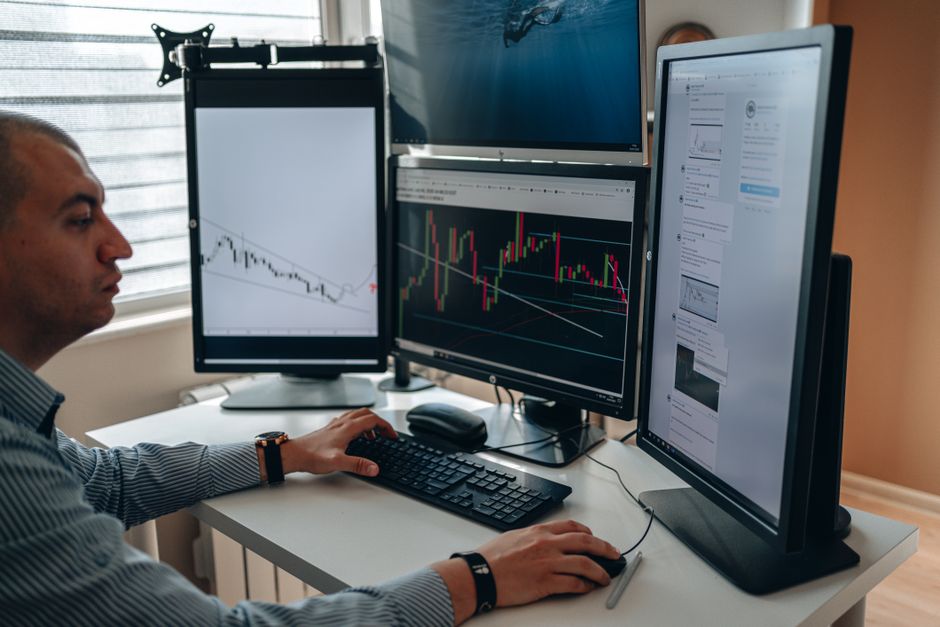
Before you commit, think about your primary use cases. Are you mainly typing documents and browsing? Or do you need crisp text for coding, accurate colors for design work, or fluid motion for gaming and streaming high-definition content? Your answer will dictate the sweet spot for screen size, resolution, and panel technology.
Understanding Screen Size and Resolution: The Core Duo
When you’re choosing a monitor for work, study, and streaming, screen size and resolution are the first things most people consider, and for good reason. They dictate how much content you can see and how sharp it appears.
Screen Size: How Big is Too Big?
For most users, a monitor between 24 and 27 inches diagonal is the sweet spot. These sizes offer ample screen real estate without overwhelming your desk or requiring excessive head movement. Many students in North America and Europe find 24-inch monitors, like the Dell UltraSharp U2422H or the HP E24 G5, ideal for desk spaces in dorms or shared apartments. For those who can accommodate it, a 27-inch monitor provides a noticeable bump in productivity, allowing for easier multitasking with multiple windows open side-by-side.
- 24-inch: Excellent for smaller desks, single-tasking, or dual monitor setups. Good for budget-conscious students.
- 27-inch: Great for multitasking, viewing larger documents, or more immersive streaming. A popular choice for home offices.
- 32-inch and larger: Ideal for specific professional tasks like video editing, graphic design, or for those who truly need vast amounts of screen space. Be mindful of desk depth and viewing distance.
Ultrawide monitors (21:9 or 32:9 aspect ratios) are an interesting alternative, particularly for professionals who value a single, seamless workspace over a dual-monitor setup. Brands like LG and Samsung offer excellent ultrawides that can replace two standard monitors, providing a panoramic view for complex timelines or numerous application windows. They’re fantastic for productivity but might feel excessive for casual use or small study areas.
Resolution: Pixel Perfect or Good Enough?
Resolution refers to the number of pixels on a screen, expressed as width x height (e.g., 1920×1080). More pixels mean sharper images and text, and more content can fit on the screen without becoming tiny.
- Full HD (FHD) / 1080p (1920×1080): This is the standard for most basic monitors and remains perfectly adequate for general office tasks, web browsing, and casual streaming. For a 24-inch monitor, 1080p looks crisp enough. However, on a 27-inch monitor, 1080p can start to look a bit pixelated, especially if you sit close.
- QHD / 1440p (2560×1440): A significant upgrade, 1440p offers much sharper text and images, providing a noticeable boost in clarity. This is the sweet spot for many 27-inch monitors, offering excellent pixel density for work, study, and high-quality streaming without the demanding hardware requirements or cost of 4K. Many professional monitors from brands like BenQ or Eizo in South America and Europe widely offer QHD.
- 4K / UHD (3840×2160): Offering four times the pixels of 1080p, 4K provides stunning detail. If you work with high-resolution photos, videos, or need the absolute sharpest text, 4K is superb. However, it requires a more powerful graphics card, and you might need to use display scaling (making elements larger) to ensure text isn’t too small, particularly on screens smaller than 32 inches. Dell’s P2721Q is a popular 4K option for productivity.
For students, particularly those on a budget, a 24-inch 1080p or 27-inch 1440p monitor offers the best value. If you’re studying graphic design or media production, investing in a 4K display would be a wise choice to future-proof your setup.
Eye Comfort and Ergonomics: Protecting Your Vision
Long hours in front of a screen can take a toll on your eyes and posture. When choosing a monitor for work, study, and streaming, don’t overlook features that prioritize your health.
Flicker-Free and Low Blue Light: Essential for Eye Health
Many older or cheaper monitors use Pulse Width Modulation (PWM) to control brightness, which can cause imperceptible flickering. This flicker, even if you can’t consciously see it, can lead to eye strain, headaches, and fatigue. Look for monitors explicitly advertised as ‘flicker-free’ or ‘DC dimming’ enabled.
Make Video Calls Look and Sound Better: A Practical Guide for Everyday Users
Blue light emitted by screens is another concern, especially in the evenings, as it can disrupt sleep patterns. Most modern monitors, like those from Acer or AOC, include ‘low blue light’ modes or filters. Some even have dedicated hardware solutions or software like Dell ComfortView Plus which filters blue light without significantly altering colors, making it great for students studying late into the night. It’s worth noting that software solutions like f.lux are also available to adjust screen color temperature based on the time of day, but hardware solutions are generally more effective.
Ergonomics: The Adjustable Stand is Your Friend
A monitor stand that only allows for tilt adjustment is a red flag for long-term comfort. A good ergonomic stand should offer:
- Height Adjustment: Crucial for positioning the top of the screen at or slightly below eye level.
- Tilt: To angle the screen for optimal viewing.
- Swivel: To rotate the screen horizontally, useful for sharing content or specific desk layouts.
- Pivot (Rotation): To turn the screen 90 degrees into portrait mode. This is a practical advantage for reading long documents, coding, or managing timelines.
If a monitor you love doesn’t come with a fully adjustable stand, consider purchasing a VESA-compatible monitor arm. Brands like Ergotron or AmazonBasics offer excellent arms that can save desk space and provide superior ergonomic flexibility. This is especially useful in cramped student housing across Europe and North America.

Panel Types and Refresh Rates: Beyond the Basics
While screen size and resolution are primary, understanding panel types and refresh rates helps refine your choice, especially if you have specific needs.
Panel Technologies: IPS, VA, and TN
- IPS (In-Plane Switching): Offers excellent color accuracy and wide viewing angles. This means colors look consistent even when viewed from the side. IPS panels are the go-to for graphic designers, photographers, and anyone who values visual fidelity. They are also excellent for general work, study, and streaming. Many high-quality monitors, like those from LG and HP, use IPS panels.
- VA (Vertical Alignment): Provides superior contrast ratios, meaning deeper blacks and brighter whites. This makes them fantastic for media consumption and gaming where contrast adds to immersion. Viewing angles are generally better than TN but not quite as wide as IPS.
- TN (Twisted Nematic): Known for very fast response times and high refresh rates, making them a favorite among competitive gamers. However, TN panels typically have the poorest color reproduction and narrowest viewing angles, meaning colors can shift if you’re not looking directly at the screen. Not recommended for color-critical work or shared viewing.
For most users choosing a monitor for work, study, and streaming, an IPS panel is the best all-around choice. If you primarily stream movies in a dark room and value deep blacks, VA could be a strong contender.
Refresh Rate and Response Time: Smooth Motion
- Refresh Rate (Hz): How many times the screen updates per second.
- 60Hz: Standard for most productivity monitors. Perfectly fine for work, study, and general streaming.
- 75Hz-100Hz: A slight step up, providing a smoother experience in daily use without a huge cost increase. Noticeable for basic gaming.
- 120Hz-240Hz+: Essential for competitive gaming, providing incredibly fluid motion. Not strictly necessary for most work or study, but can make scrolling and general desktop use feel silkier.
- Response Time (ms): How quickly pixels can change color. Lower is better, preventing ghosting or motion blur.
- 5ms: Acceptable for most general use and casual gaming.
- 1ms (GtG – Gray-to-Gray): The gold standard for fast-paced gaming, ensuring minimal blur.
Unless you’re a serious gamer, a 60Hz or 75Hz IPS monitor with a 5ms response time will be more than adequate for your work, study, and streaming needs. Don’t overspend on a high refresh rate monitor if you won’t utilize it.
Connectivity and Additional Features: Future-Proofing Your Setup
Modern monitors come with a variety of ports and smart features that can streamline your workspace.
Port Selection: HDMI, DisplayPort, and USB-C
Ensure your monitor has the right ports for your devices. HDMI and DisplayPort are standard for video input. DisplayPort generally offers higher bandwidth for higher resolutions and refresh rates. USB-C is becoming increasingly common and is a fantastic feature:
- USB-C (with Power Delivery): A single USB-C cable can carry video, data (for USB hubs), and even charge your laptop (up to 65W or more). This can dramatically simplify your cable management, especially for students with modern laptops. Many HP and Lenovo monitors now feature solid USB-C connectivity.
- USB Hub: Many monitors include a built-in USB hub, allowing you to connect peripherals like your keyboard, mouse, or webcam directly to the monitor, reducing cable clutter to your computer.
Built-in Speakers and Webcams
Some monitors include built-in speakers. While convenient, their audio quality is typically basic. For anything beyond system sounds or casual YouTube videos, external speakers or headphones are recommended. Similarly, some monitors integrate webcams, which can be useful for video calls, especially with the prevalence of Microsoft Teams and Zoom in education and business. Ensure the webcam quality is sufficient if you plan to rely on it.
KVM Switches: A Power User’s Dream
Some advanced monitors, particularly those aimed at professionals, feature a built-in KVM (Keyboard, Video, Mouse) switch. This allows you to connect two computers to the same monitor and share a single keyboard and mouse setup, switching between them with a button press. This is incredibly useful if you have a work laptop and a personal desktop, or a Windows PC and a Mac, simplifying your desk setup considerably.
Your Beginner Guide to Passkeys and Passwordless Login: Ditching the Digital Dilemma
GEO Focus: Regional Considerations for Monitor Purchases
While the core technology remains global, pricing, availability, and specific market trends can vary by region.
North America: A Competitive Market
The North American market, encompassing the US and Canada, is highly competitive, with frequent sales events like Black Friday and Prime Day offering significant discounts on popular brands like Dell, LG, HP, Acer, and Samsung. Retailers like Best Buy, Amazon, and Newegg often have wide selections. Students might find specific educational discounts through university programs or directly from manufacturers. Keep an eye out for refurbished units from reputable sellers, which can offer great value.
Europe: Diverse Options and VAT
Europe’s monitor market is diverse, with strong local brands alongside international players. Pricing will often include VAT (Value Added Tax), which can make comparisons tricky across different countries within the EU. German brands like Eizo are known for high-quality, professional-grade displays, while AOC and BenQ are popular for value-oriented options. Large electronics retailers like MediaMarkt, Fnac, and Currys PC World are common sources. Always check local warranty policies, as they can differ.
South America: Focus on Value and Local Retailers
In South America, particularly countries like Brazil and Argentina, the focus often shifts towards value and availability. Import taxes can sometimes make higher-end monitors significantly more expensive. Brands like LG, Samsung, and AOC are widely available. Local electronics chains and online marketplaces like Mercado Libre are primary purchasing channels. Look for promotions from national distributors. When considering a monitor, ensure local repair and warranty support are available, as international returns can be costly.
AEO FAQs: Quick Answers to Common Monitor Questions
Can I use my monitor with Wi-Fi 7?
Wi-Fi 7 (802.11be) is a wireless networking standard, while a monitor connects to your computer via video cables (HDMI, DisplayPort, USB-C) or wirelessly through display technologies like Miracast, which relies on your device’s Wi-Fi capabilities. A monitor itself does not have a Wi-Fi connection in the same way a laptop or phone does. So, while your computer might use Wi-Fi 7, it doesn’t directly interact with your monitor’s display function.
Do I need a monitor with a built-in password manager?
No, monitors do not typically have built-in password managers. Password managers like LastPass, 1Password, or the one integrated into Microsoft Edge or Google Chrome are software applications that run on your computer or smartphone to securely store and autofill credentials. Your monitor is simply a display device and doesn’t handle such sensitive data directly.
Is Microsoft Windows better on certain monitors?
Microsoft Windows works well across a vast range of monitors. The quality of your Windows experience on a specific monitor will depend on factors like the monitor’s resolution (higher resolutions make text and elements sharper), screen size, color accuracy, and refresh rate. Windows 10 and 11 handle display scaling well, meaning you can adjust text and app sizes to be comfortable on any high-resolution display, ensuring a good experience regardless of specific monitor brand or type.
What’s the best screen size for a student studying from home?
For most students studying from home, a 24-inch to 27-inch monitor is ideal. A 24-inch Full HD (1920×1080) monitor offers a great balance of size and affordability for typical document work and online classes. If your budget allows, a 27-inch QHD (2560×1440) monitor provides significantly more screen real estate for multitasking with multiple windows open, making it easier to reference notes while writing an essay or participating in video lectures.
How important is color accuracy for general use and streaming?
For general office work, web browsing, and casual streaming, extreme color accuracy (like that found in professional graphic design monitors) isn’t critical. Most IPS panels offer good enough color reproduction for these tasks. However, if you plan to do any photo editing, video editing, or design work, even as a hobbyist, a monitor with decent factory calibration and broad sRGB coverage will provide a much better experience than a budget TN panel.
Can I use a TV as a monitor for work and study?
While you can connect a TV to your computer, it’s generally not recommended as a primary monitor for dedicated work or study. TVs typically have lower pixel density (meaning larger, less sharp pixels at common viewing distances), higher input lag, and often lack the ergonomic adjustments of a dedicated monitor. Text can appear blurry, and long hours in front of a large TV can cause eye strain. A dedicated monitor provides a superior, more comfortable experience for productivity tasks.
Conclusion: Making Your Monitor Choice
Choosing a monitor for work, study, and streaming doesn’t have to be complicated. Start by considering your primary activities and budget, then prioritize screen size and resolution for clarity and space. Don’t underestimate the importance of eye comfort features like flicker-free technology and low blue light, along with an adjustable stand. An IPS panel is generally the best all-rounder, offering good colors and viewing angles for most uses. By focusing on these core elements, you’ll find a display that not only enhances your digital life but also supports your long-term comfort and productivity.
Read more useful technology guides on Le Daily Post.