Remember those early days of remote work and virtual meetups? Many of us just clicked ‘join’ with our laptop’s built-in webcam and microphone, hoping for the best. The results were often a shadowy figure squinting into a pixelated screen, with audio that sounded like it was coming from inside a tin can. It’s a common experience, whether you’re joining a family chat from Buenos Aires, a work meeting from Berlin, or a job interview from Toronto.
As video calls have become an ingrained part of how we connect, from professional collaboration to personal catch-ups, merely ‘getting by’ isn’t enough anymore. A clear image and crisp audio aren’t just about vanity; they’re about effective communication, making a good impression, and reducing the fatigue that often comes from struggling to understand someone through a poor connection. Thankfully, upgrading your setup doesn’t require a Hollywood budget or an engineering degree.
This guide is designed for the everyday user, providing straightforward, actionable steps to significantly improve how you make video calls look and sound better. We’ll cover everything from simple tweaks to smart purchases, ensuring your virtual presence is always at its best, no matter where you are in Europe, North America, or South America.
The Core Components of a Better Video Call Setup
Before diving into specific recommendations, it’s helpful to understand the basic elements that contribute to your virtual presentation. Think of it like building blocks: each one plays a crucial role in the overall quality. When one block is weak, the whole structure suffers. Focusing on these areas will provide the biggest return on your investment, both in time and money.
The three pillars of a great video call are your visuals, your audio, and your connection. Your visuals are primarily determined by your webcam and lighting. Your audio comes down to your microphone. And your connection, of course, is about your internet speed and stability. Addressing each of these systematically is the path to truly make video calls look and sound better.

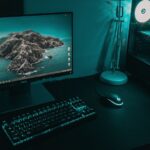
A well-lit and equipped home office setup for clear video calls.
Practical Steps to Make Video Calls Look and Sound Better
1. Master Your Lighting: The Easiest Upgrade
Bad lighting is often the single biggest culprit behind poor video quality. Your expensive 4K webcam won’t help if you’re a silhouette against a bright window or bathed in the sickly glow of a single overhead lamp. The goal is even, front-facing illumination.
- Use Natural Light: Position yourself facing a window. This is usually the cheapest and most effective lighting solution. Avoid having the window behind you, which will turn you into a dark shadow.
- Invest in a Ring Light or Desk Lamp: If natural light isn’t an option, a small LED ring light (often USB-powered and starting from €20 / $20 USD) or even a bright desk lamp placed directly behind your monitor can work wonders. Look for lights with adjustable brightness and color temperature. Brands like Elgato offer more professional options, but simpler ones from Amazon Basics or local electronics stores are perfectly adequate for most.
- Avoid Overhead Lighting: Overhead lights create harsh shadows under your eyes and nose, making you look tired or unwell. If you can’t avoid them, try to supplement with front-facing light to balance it out.
2. Upgrade Your Audio: Your Voice Matters
Your laptop’s built-in microphone, while convenient, often picks up room echo, keyboard clicks, and general ambient noise. An external microphone provides a dramatic improvement in clarity and warmth, making it much easier for others to hear and understand you.
Home Internet Problems: How to Diagnose Slow Wi-Fi and Get Back Online
- USB Microphones: For most everyday users, a USB microphone is the sweet spot. They’re plug-and-play and offer excellent quality. Popular choices include the Blue Yeti or Rode NT-USB Mini. Even more affordable options like the HyperX SoloCast or FIFINE K669B provide significant upgrades over built-in mics.
- Headset Microphones: If you’re in a noisy environment, a headset with a good boom mic (like many gaming headsets or office-focused headsets from Jabra or Logitech) can be ideal. They keep the microphone close to your mouth, minimizing background noise.
- Placement is Key: No matter your microphone, keep it relatively close to your mouth (but not so close that you’re breathing into it). Avoid placing it directly on your desk if you type heavily, as it will pick up vibrations.
3. Choose a Better Webcam: Clarity for Connection
While many newer laptops (especially higher-end MacBooks or Dell XPS models) now include decent webcams, older devices or budget models often feature grainy, low-resolution cameras. A dedicated external webcam offers better image quality, color reproduction, and often wider fields of view.
- Full HD (1080p) is Sufficient: Don’t feel pressured to buy a 4K webcam unless you’re a streamer or video editor. A good 1080p webcam from brands like Logitech (C920 series is a classic for a reason), Razer Kiyo, or Anker PowerConf C200 will deliver excellent results for typical video calls.
- Consider Low-Light Performance: If your lighting isn’t always perfect, look for webcams that perform well in lower light conditions. This spec is often mentioned in reviews.
- Manual Controls: Some webcams come with companion software that allows you to adjust brightness, contrast, and white balance, giving you more control over your image.
4. Optimize Your Background: Professionalism and Privacy
What’s behind you is as important as what’s in front of you. A cluttered or distracting background detracts from your professionalism and can even be a privacy concern.
- Keep it Tidy: A clean, uncluttered background is always best. A plain wall, a neatly organized bookshelf, or a tasteful piece of art works well.
- Blur or Virtual Backgrounds: Most video conferencing software (Zoom, Microsoft Teams, Google Meet) offers background blur or virtual backgrounds. Use them tastefully. A subtle blur is often better than a quirky virtual background for professional settings.
- Consider a Physical Backdrop: For a truly consistent look, a simple fabric backdrop (often sold for photography) in a neutral color can be deployed quickly and affordably.
5. Ensure a Stable Internet Connection: The Foundation
Even with the best gear, a shaky internet connection will ruin your video call. Pixelated video, dropped audio, and freezing screens are all symptoms of poor connectivity.
- Wired Connection: Whenever possible, connect your computer directly to your router with an Ethernet cable. This provides the most stable and fastest connection, reducing latency and packet loss.
- Minimize Wi-Fi Congestion: If you must use Wi-Fi, ensure you’re close to your router. Ask others in your household to avoid bandwidth-heavy activities (like 4K streaming or large downloads) during your calls.
- Upgrade Your Wi-Fi Router: If your router is old, upgrading to a newer standard like Wi-Fi 6 or even Wi-Fi 7 (when available and widely supported by your devices) can significantly improve performance, especially in crowded networks. While Wi-Fi 7 isn’t ubiquitous yet, it promises even greater speeds and lower latency, which will be a boon for future video conferencing needs.
6. Manage Software Settings and Etiquette
Sometimes, the problem isn’t your hardware but your software settings or even your habits.
- Check Audio/Video Inputs: Always verify that your conferencing software is using the correct external webcam and microphone. It’s a common mistake to think you’re using your new mic only to realize the software is still defaulting to your laptop’s built-in one.
- Headphones are Your Friend: Wearing headphones (even basic earbuds) prevents echo and feedback, which improves the audio experience for everyone else on the call.
- Look at the Camera: It sounds simple, but try to look directly at your webcam, not just at the faces on your screen. This creates a sense of direct eye contact, making you appear more engaged.
Comparing Common Video Call Setups
Here’s a quick comparison of typical setups, from basic to more advanced, to give you an idea of what improvements you can expect at different investment levels. This isn’t about buying the most expensive gear; it’s about making smart choices for your specific needs, whether you’re working remotely in South America, presenting to clients in North America, or catching up with family across Europe.
| Setup Tier | Pros | Cons | Best For | Approx. Cost (USD/EUR) |
|---|---|---|---|---|
| Basic (Laptop Built-in) | No extra equipment needed, highly portable. | Poor audio/video quality, susceptible to noise/bad lighting. | Quick, spontaneous calls, very low stakes. | €0 / $0 |
| Entry-Level Upgrade | Noticeable improvement in audio/video, still relatively simple. | Might still struggle in very poor lighting, some cable management. | Everyday remote work, family calls, general online interactions. | €30-€80 / $30-$80 (light, basic mic) |
| Mid-Range Prosumer | Excellent quality, reliable, good for various lighting conditions. | More gear to set up, requires dedicated USB ports. | Professional meetings, online presentations, content creation. | €100-€250 / $100-$250 (webcam, better mic, ring light) |
| High-End Enthusiast | Broadcast-quality video and audio, full control over image/sound. | Significant investment, more complex setup, less portable. | Streaming, high-stakes virtual events, serious content creators. | €300+ / $300+ (DSLR/mirrorless, audio interface, advanced lighting) |

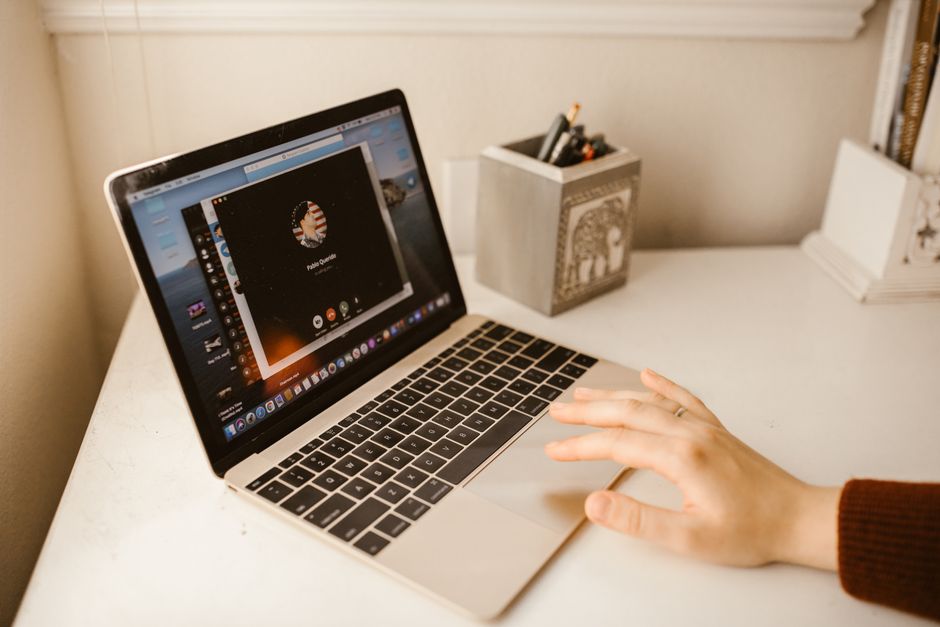
A person confidently participating in a video call with good lighting and clear audio.
Common Mistakes to Avoid for Better Video Calls
Even with the right equipment, it’s easy to fall into traps that undermine your efforts. Being aware of these common pitfalls can save you frustration and ensure your setup performs optimally to make video calls look and sound better.
A very frequent mistake is neglecting your background. You might have a top-tier webcam, but if there’s laundry piled up or a chaotic mess visible, it creates an unprofessional impression. Always take a moment to glance at what’s in your camera’s frame before joining a call. Similarly, ensure any virtual backgrounds you use are appropriate and not glitchy, as these can be more distracting than a simple, tidy physical background.
Don’t Let App Subscriptions Bleed Your Budget Dry: A Small Business Owner’s Guide
Another common oversight is not checking your audio input/output settings. Many times, users have invested in a great external microphone but forget to select it in their video conferencing software. The result? They’re still using the often inferior built-in mic. Always take a moment in your software’s settings (Zoom, Teams, Google Meet, etc.) to confirm your chosen microphone and speakers are active.
Overlooking your internet connection’s stability is also a pitfall. While a fast speed is important, consistency is key. A connection that constantly drops or fluctuates can make your voice sound robotic or your video freeze, regardless of how good your webcam and mic are. If possible, use an Ethernet cable. If you’re on Wi-Fi, consider testing your connection before important calls, especially if other devices are heavily using the network.
Finally, remember that context matters. A highly polished setup might be overkill for a casual chat with friends, but it’s essential for a job interview or a client presentation. Adjust your efforts and investments based on the importance and formality of the call. You wouldn’t wear a tuxedo to a backyard barbecue, and similarly, you don’t always need a full studio setup for every virtual interaction. However, having the basic components ready to go ensures you can always put your best foot forward when it counts.
Frequently Asked Questions About Making Video Calls Better
Do I really need an external webcam if my laptop has one?
For most everyday users, an external webcam significantly improves video quality over integrated laptop cameras. Dedicated webcams offer better resolution, larger sensors for superior low-light performance, and often more accurate color reproduction. While newer high-end laptops, particularly from Apple, have improved, an external webcam is still a noticeable upgrade for many.
What’s the most impactful upgrade for audio quality?
The single most impactful upgrade for audio quality is an external microphone. Your laptop’s built-in mic is typically omnidirectional, picking up all room noise. A dedicated USB microphone (like a Blue Yeti or even a basic USB headset) provides clearer, richer sound, isolates your voice better, and drastically reduces background distractions for your listeners.
How important is my Wi-Fi speed for video calls?
While speed is important, stability is paramount. A minimum of 5-10 Mbps upload and download speed is generally recommended for smooth HD video calls. More critical than raw speed, however, is a stable, consistent connection with low latency. A wired Ethernet connection almost always outperforms Wi-Fi for reliability during crucial calls.
Should I worry about Wi-Fi 7 for video calls?
Currently, Wi-Fi 7 is bleeding-edge technology. While it promises incredible speeds and reduced latency, the benefits for typical video calls are minimal right now, as most devices and network infrastructures aren’t fully compatible. Focus on optimizing your current Wi-Fi 5 or Wi-Fi 6 setup first. Wi-Fi 7 will be more relevant in a few years as it becomes more widespread.
Can password managers help my video call setup?
Password managers don’t directly impact your video call quality, but they contribute to your overall digital security and efficiency. By securely storing complex passwords for your conferencing software, cloud storage (for sharing files), and even hardware driver downloads, they ensure you can access your tools quickly and safely, indirectly making your entire remote work experience smoother.
Making your video calls look and sound better is an investment in your communication and professional presence. With these practical tips and thoughtful choices, you can ensure you’re always seen and heard clearly, fostering better connections whether you’re working, learning, or socializing online. Read more useful technology guides on Le Daily Post.