We’ve all been there: you grab the family tablet, only to find the background changed, an unfamiliar game downloaded, and your browsing history filled with cartoons. Or maybe your work laptop, briefly lent to a child for homework, now has a dozen new desktop icons and a questionable virus warning. In a household with multiple users and shared devices, digital friction isn’t just common; it’s practically inevitable without a bit of foresight and setup.
The reality of modern family life means more devices, more screens, and often, more shared gadgets. Whether it’s a living room computer, a communal tablet, or even a smart TV, these devices can quickly become a digital free-for-all if not properly managed. The good news is, with a few thoughtful strategies, you can significantly reduce the daily digital chaos and make shared family devices less chaotic in real life for everyone.
Understanding the Root Causes of Digital Clutter on Shared Devices
Before diving into solutions, it helps to understand why shared devices often descend into disarray. Primarily, it’s a lack of clear boundaries and personalized spaces. When everyone uses the same login or a single generic ‘Family’ profile, settings get changed, files get moved, and privacy becomes a distant memory. Children accidentally stumble into adult content, important work documents get deleted, and the sheer volume of downloaded apps grinds performance to a halt.
Another major factor is the sheer diversity of needs within a household. An adult needs access to financial apps and work documents, a teenager wants gaming and social media, and a young child needs educational content and strict screen time limits. One-size-fits-all settings simply don’t work. This is where user profiles become invaluable, creating distinct digital environments tailored to each person’s age and usage requirements.

Practical Steps to Make Shared Family Devices Less Chaotic
Transforming a chaotic shared device into an organized, harmonious tool involves a few key steps. Think of it as setting up clear digital lanes for everyone.
- Establish Individual User Profiles for Everyone
- Implement solid Parental Controls for Younger Users
- Leverage Cloud Accounts for Shared and Personal Files
- Use a Family Password Manager
- Regularly Review and Uninstall Unused Apps
- Educate and Set Clear Expectations
This is arguably the most impactful step. Whether you’re using a Windows PC, a Mac, or an Android tablet, create a separate user profile for each family member. This segregates desktop backgrounds, browser bookmarks, installed apps, and documents. For instance, on a Windows PC, go to Settings > Accounts > Family & other users to add new accounts. For Apple devices, especially Macs, head to System Settings > Users & Groups. This ensures that when your child logs in, they see their own environment, not yours, and vice versa. It’s a fundamental way to make shared family devices less chaotic.
Once profiles are set up, layer on parental controls for children’s accounts. Both Apple and Microsoft offer comprehensive built-in tools. Apple’s Screen Time (available across iPhones, iPads, and Macs) allows you to set downtime, app limits, content restrictions, and even communication limits. Microsoft Family Safety on Windows and Xbox lets you filter websites, set app and game limits, track activity, and manage purchases. Many Android tablets also have native ‘Kids Mode’ or ‘Family Link’ features. These tools are crucial for safeguarding children and managing their digital consumption effectively, reducing arguments and confusion.
How to Build a Simple Digital Filing System Without Overcomplicating It
Cloud services are your friends here. Instead of storing all family photos on the local hard drive of a shared PC, use a shared cloud storage solution like Google Drive, Microsoft OneDrive, or Dropbox for family documents, photos, and videos. Each family member can still have their personal cloud storage (e.g., their own Google Drive or iCloud account) linked to their user profile for private files. This keeps the shared device’s storage clean and ensures important data is backed up and accessible from anywhere, whether you’re working remotely from a café in Berlin or coordinating logistics from Bogotá.
Forgotten passwords are a major source of chaos. Implement a family password manager like 1Password, LastPass, or Bitwarden. These services allow secure sharing of common household passwords (streaming services, utility accounts, Wi-Fi) without exposing them directly. Each family member can also store their personal passwords securely. This eliminates sticky notes on monitors and the dreaded ‘try every combination’ guessing game. In North America, where many households subscribe to multiple streaming services, a family password manager becomes almost essential.
Shared devices tend to accumulate digital clutter rapidly. Schedule a monthly or quarterly review of installed applications. Encourage family members to uninstall apps they no longer use, especially games or temporary tools. This frees up storage space, can improve device performance, and makes the interface less overwhelming. A good rule of thumb: if no one has used it in three months, it’s probably safe to remove.
Technology solutions are only part of the answer. Sit down with your family to explain the new setup and the reasoning behind it. Discuss screen time rules, what content is appropriate, and how to report issues or ask for new app installations. Clear communication and agreed-upon guidelines are powerful tools to make shared family devices less chaotic in real life.
Comparing Device Management Tools: Apple vs. Microsoft
When it comes to shared family device setup, the two biggest players are Apple and Microsoft. Each offers a solid ecosystem with specific strengths.
| Feature | Apple Ecosystem (iOS/macOS) | Microsoft Ecosystem (Windows/Xbox) |
|---|---|---|
| User Profiles | Macs offer full user accounts. iOS/iPadOS lack multi-user profiles on a single device, but Family Sharing links accounts. | Windows offers full multi-user accounts for PCs. Xbox consoles have solid individual profiles. |
| Parental Controls | Screen Time: Comprehensive limits for apps, content, communication, web filtering across iPhone, iPad, Mac. Part of Family Sharing. | Microsoft Family Safety: App/game limits, web filtering, activity reports, content restrictions across Windows, Xbox, Android. |
| Cloud Storage | iCloud: Personal storage, iCloud Drive for documents. Family Sharing allows sharing storage plans. | OneDrive: Personal storage, document syncing. Microsoft 365 Family includes 1TB per user for up to 6 users. |
| App Purchase Sharing | Family Sharing: Allows sharing eligible app and media purchases across up to six family members. | Microsoft Store: Certain apps and games can be shared among family members linked to an account. |
| Strengths for Families | Excellent for integrated device management across mobile and desktop for Apple users. Strong privacy focus. | Very strong for Windows PCs and Xbox consoles. Great for remote work families, often bundled with productivity tools. |
Common Mistakes to Avoid in Shared Family Device Setup
Even with the best intentions, some pitfalls can still lead to digital chaos.
A common mistake is assuming ‘set it and forget it’ will work. Technology evolves, and so do children’s needs and interests. What works for a seven-year-old might be too restrictive or irrelevant for a ten-year-old. Regularly review settings, especially parental controls, and adjust them as your children grow and demonstrate increasing responsibility. This adaptive approach ensures the system remains effective and doesn’t become a source of resentment.
Choosing a Tablet for Reading, Work, and Entertainment: A Practical Buying Guide
Another frequent misstep is centralizing all family data on one person’s account. For example, using only the parent’s Apple ID for all iPads in the house, or having all photos upload to just one Google Photos account. While convenient initially, this creates a mess of mixed personal data and makes it incredibly difficult to disentangle later. Always aim for individual accounts linked by family sharing features, rather than a single master account for multiple users.
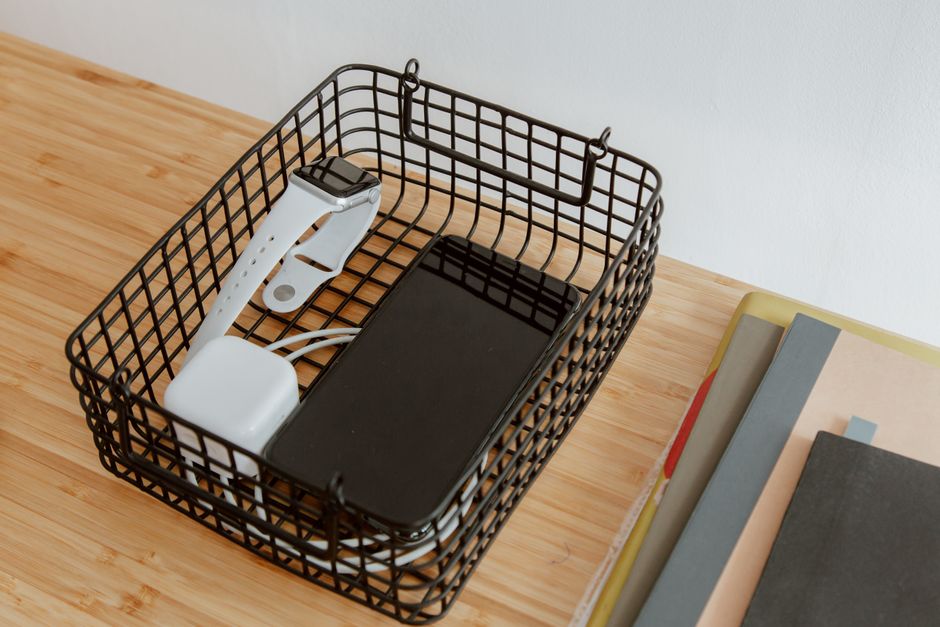
Underestimating the importance of physical organization is also a blunder. While not strictly digital, a designated charging station, labeled cables, and clear rules about where devices are stored can prevent lost chargers, dead batteries, and general disarray. This is particularly true in homes with multiple shared tablets or laptops, common in homes of remote workers across North America and Europe.
Finally, neglecting to back up important data. Even with cloud storage, local backups of critical files can be a lifesaver. Accidents happen, devices fail, and sometimes cloud sync issues occur. A simple external hard drive, used periodically to back up shared family documents and photos, provides an extra layer of security. This is especially crucial for remote workers who store sensitive project files on shared devices.
FAQ: Making Shared Devices Work for Your Family
What is the best way to manage screen time for kids on shared devices?
The best way is through platform-specific parental controls like Apple Screen Time or Microsoft Family Safety. These allow you to set daily limits, scheduled downtime, and restrictions on specific apps or content. They ensure consistency across devices and are often more effective than manual enforcement, reducing daily negotiations and helping to make shared family devices less chaotic.
Can I use different Apple IDs on a single iPad for family members?
No, an iPad or iPhone is primarily designed for single-user ownership linked to one Apple ID. While you can switch between Apple IDs, it’s cumbersome and not intended for daily multi-user functionality like a Mac or PC. For shared iPads, focus on using Family Sharing to pool purchases and iCloud storage, and utilize Screen Time restrictions for individual users if needed.
Are there good free password managers for families?
Yes, some excellent free options exist. Bitwarden offers a solid free tier with cross-platform syncing, making it a strong choice for families. It provides secure password storage and sharing capabilities that can significantly help to manage household logins. Browser-built-in managers (like Google Chrome’s or Safari’s) are also free, but less centralized for family sharing.
How can remote workers keep their professional files separate on a shared family laptop?
Remote workers should always use a separate user profile on the shared laptop for their professional work. This segregates their documents, browser history, and sensitive applications from family use. Additionally, leveraging a dedicated cloud storage service (like Microsoft OneDrive or Google Drive) for work files ensures they are backed up and accessible only to the worker, adding a layer of security and organizational clarity.
What’s the difference between user profiles and guest accounts?
User profiles are permanent accounts with personalized settings, installed apps, and persistent files for regular users. Guest accounts, on the other hand, are temporary and designed for occasional use by visitors. They typically have limited access, don’t save any data after logout, and reset with each session. For family members, full user profiles are always preferred to make shared family devices less chaotic.
By taking these steps, from setting up individual profiles to leveraging cloud storage and communicating expectations, you can improve your shared family devices from sources of daily frustration into smooth, efficient tools for everyone. Ready to dive deeper into making technology work for you? Read more useful technology guides on Le Daily Post.