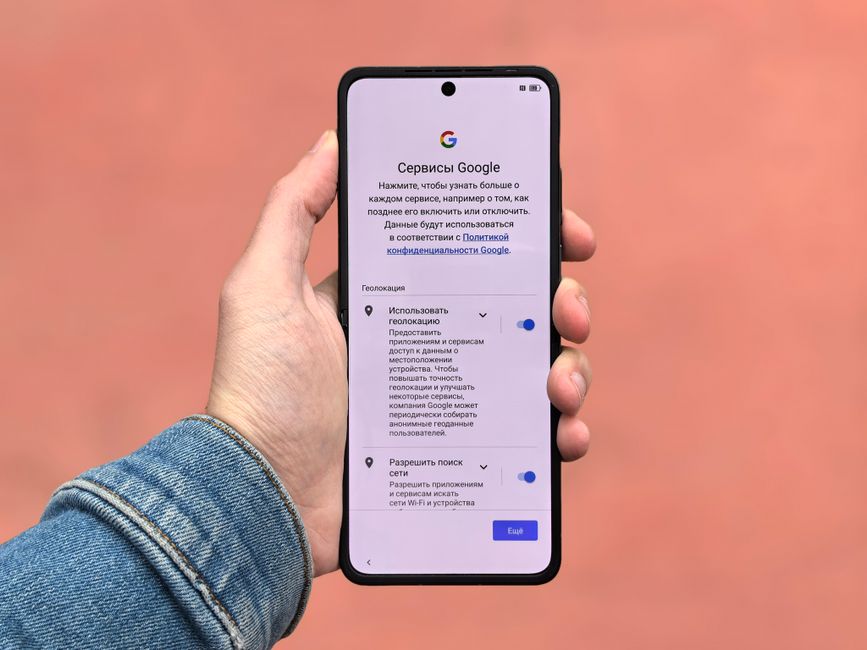
When you get a new phone, whether it’s an iPhone or an Android, it’s crucial to immediately review core privacy settings. Focus on location services, app permissions, ad personalization, and data sharing with the device manufacturer. Many default settings are designed for convenience, not maximum privacy, often sharing more data than necessary. Adjusting these ensures your personal information, like browsing habits or physical location, remains protected from unwarranted access by apps or advertisers, a practice increasingly scrutinized in regions like Europe under GDPR.
That new phone feeling is great, isn’t it? Peeling off the plastic, the fresh screen, the promise of faster performance. But before you dive headfirst into downloading all your favorite apps, there’s a critical step many people rush through: setting up your privacy. It’s not the most glamorous part of the unboxing experience, but it’s arguably the most important. Simply tapping ‘Agree’ or ‘Next’ through the initial setup prompts can inadvertently grant apps and even the device manufacturer broad access to your personal data.
Think about it: your phone is a highly personal device. It knows where you go, who you talk to, what you search for, and often, what you buy. Taking a few extra minutes at the start to tweak the privacy settings to check on a new phone that are worth your time can make a significant difference in how much of that data is shared, and with whom. This isn’t just about avoiding targeted ads; it’s about safeguarding your digital identity.
Understanding Default Privacy: Convenience vs. Control
Device manufacturers and app developers often prioritize user convenience, which frequently means enabling a lot of features by default. These features, while sometimes useful, often involve sharing data. For example, location services might be on constantly for weather apps or even just for general system functionality, even if you only need it occasionally. Similarly, apps might request access to your contacts, photos, or microphone ‘just in case’ you use a particular feature, rather than only when that specific feature is active.
This default behavior isn’t inherently malicious, but it does mean you’re often opted in to data sharing unless you proactively opt out. Regulations like the General Data Protection Regulation (GDPR) in Europe have pushed for clearer consent, but even with these measures, users still need to pay attention. In North America, the approach can be more fragmented, while in parts of South America, data privacy awareness is growing but consumer protections might vary. This makes it even more important for the individual to take charge.
Essential Privacy Settings to Check on a New Phone That Are Worth Your Time
Here’s a practical rundown of the most crucial adjustments you should make on your new device, whether it’s the latest iPhone or a new Samsung Galaxy.
1. Location Services: Granular Control is Key
Your phone’s GPS is incredibly powerful, tracking your movements with impressive accuracy. By default, many apps and system services have ‘Always’ access to your location. This means they can see where you are even when you’re not actively using the app. Consider reducing this to ‘While Using the App’ or ‘Ask Next Time’ for most applications. For apps you truly never want to share your location with, turn it off entirely. On an iPhone, navigate to Settings > Privacy & Security > Location Services. On an Android phone, it’s typically Settings > Location > App location permissions. Pay special attention to system services too; you might not need ‘Significant Locations’ or ‘Location History’ always enabled.
Smart Rings vs Smartwatches: Which Makes More Sense for Your Family?
2. App Permissions: Be Discerning
Beyond location, apps request access to a whole host of other sensitive data: your photos, microphone, camera, contacts, calendar, and even files. A common mistake is to grant all permissions because an app asks for them. Ask yourself: does this flashlight app really need access to my microphone? Does this game need my contacts? For social media apps, granting camera and microphone access when you’re actively using them is logical. But for many others, it’s not. Review these permissions in Settings > Apps (Android) or Settings > Privacy & Security (iPhone).
3. Ad Personalization and Tracking: Opt Out Where Possible
Both Apple and Google use unique identifiers for advertising purposes. These allow advertisers to track your activity across apps and websites to build a profile for targeted ads. While you can’t always stop ads entirely, you can significantly limit personalization. On iPhone, go to Settings > Privacy & Security > Apple Advertising and turn off ‘Personalized Ads’. On Android, it’s typically Settings > Google > Ads, where you can ‘Delete Advertising ID’ and ‘Opt out of Ads Personalization’. This doesn’t stop ads, but it makes them less relevant and prevents companies from building extensive profiles based on your phone usage.
4. Data Sharing with Manufacturer and Carriers
Your phone manufacturer (like Samsung or Apple) and your mobile carrier often collect diagnostic and usage data to improve their services. While some of this is benign, review what’s being shared. On iPhones, check Settings > Privacy & Security > Analytics & Improvements. On Android, this might be under Settings > Privacy > Usage & diagnostics. Look for options to limit or disable sharing. This data can include app crashes, how often you use certain features, and even information about your network connection. Decide what level of sharing you’re comfortable with.
5. USB-C and Data Transfer Settings
With the widespread adoption of USB-C, especially across newer Android phones and even the latest iPhones, it’s important to understand how your phone interacts with other devices when connected. By default, your phone might automatically connect in ‘charging only’ mode when plugged into an unknown USB-C port, which is good for security. However, if you plug into a computer, ensure you explicitly select ‘File Transfer’ or ‘PTP’ (Photo Transfer Protocol) if you intend to move data. Never leave your phone unlocked and set to ‘File Transfer’ when connected to public charging stations, as this could expose your data.
6. Smart Home & Bluetooth Devices: Mind the Connections
If you connect your new phone to smart home devices (like Google Nest, Amazon Echo, or Apple HomeKit), be mindful of the data these connections can share. Your phone often acts as a hub. Review the privacy settings within your smart home apps specifically. Bluetooth, while convenient, can also be a vector for tracking if left always on and discoverable. Keep Bluetooth off when not in use, or at least limit its discoverability. Many devices remember trusted connections, but a new phone means re-establishing these, offering a chance to be more selective.
Comparing Privacy Approaches: iOS vs. Android Ecosystems
While both Apple’s iOS and Google’s Android have made significant strides in privacy, their philosophies and implementations differ. Understanding these nuances can help you make more informed decisions when setting up your new device.
Your Beginner Guide to Passkeys and Passwordless Login: Ditching the Digital Dilemma
| Feature Category | Apple iOS Approach | Google Android Approach |
|---|---|---|
| App Permissions | Generally more stringent and transparent; apps must explicitly ask for access upon first use. Provides ‘Ask App Not to Track’ (App Tracking Transparency). | Permission model is solid, but can be more fragmented due to various manufacturers (e.g., Samsung, Xiaomi). Granular controls are present but sometimes nested. |
| Location Services | Strong emphasis on user control with options like ‘Never’, ‘Ask Next Time or When I Share’, ‘While Using the App’, and ‘Precise Location’ toggles. | Similar granular controls, but historical location data (Google Location History) is often enabled by default and requires separate disabling. |
| Data Sharing with Manufacturer | Data collection is generally anonymized and aggregated, with clear opt-out options for diagnostics and usage. Apple emphasizes ‘Privacy by Design’. | Google collects extensive data for improving services, often linked to your Google account. Opt-out options exist but require diligent searching across various settings. |
| Ad Personalization | Offers ‘Limit Ad Tracking’ and App Tracking Transparency, giving users clear choices to prevent apps from tracking them across other apps and websites. | Provides options to ‘Reset Advertising ID’ and ‘Opt out of Ads Personalization’ through Google settings, but the overall ecosystem for ad tracking is vast. |
| Updates & Security | Consistent and timely updates across all supported devices, reducing security vulnerabilities. | Updates can be fragmented depending on the device manufacturer and carrier, leading to potential delays in security patches. |
Common Mistakes to Avoid When Setting Up New Phone Privacy Settings
It’s easy to make a few missteps when you’re eager to start using your new phone. Avoiding these common errors can significantly enhance your privacy from day one.
One frequent mistake is simply accepting all default settings. Manufacturers often pre-select options that favor convenience or data collection. Always review each prompt carefully during the initial setup process, rather than just tapping ‘Next’ without reading. While it adds a few minutes to the process, it’s time well spent.
Another pitfall is granting blanket permissions to apps. Just because an app requests access to your camera, microphone, or contacts doesn’t mean it absolutely needs it to function. Many apps will work perfectly well with limited permissions. Take a moment to consider the actual purpose of the app and whether the requested access aligns with it. For instance, a simple note-taking app likely doesn’t need your precise location or microphone access.
Forgetting to revisit settings after the initial setup is also common. Your usage habits might change, or new apps might be installed. Make it a practice to periodically review your app permissions and privacy settings, perhaps once every few months. This is especially true for apps that receive major updates, as these updates sometimes reset or add new permission requests.
Finally, overlooking the privacy implications of connecting to smart home devices or public Wi-Fi networks can expose your data. While your new phone might connect effortlessly to your smart home hub or a public Wi-Fi hotspot in a bustling South American cafe, always ensure you’ve reviewed the privacy policies of those connected services. Your phone is a gateway, and its security is only as strong as the weakest link in its connected ecosystem.
Frequently Asked Questions About New Phone Privacy Settings
- What’s the most critical privacy setting to check immediately on a new phone?
The most critical setting to check immediately is location services. Many apps and system functions default to ‘Always’ access, which can track your precise movements. Adjusting this to ‘While Using the App’ or ‘Ask Next Time’ for most apps significantly enhances your privacy. - How can I stop my new phone from sharing my data with advertisers?
You can limit ad personalization by disabling tracking identifiers. On an iPhone, go to Settings > Privacy & Security > Apple Advertising and turn off ‘Personalized Ads’. On Android, find Settings > Google > Ads, and opt out of Ads Personalization and delete your Advertising ID. - Should I enable app tracking transparency on my new iPhone?
Yes, you should enable App Tracking Transparency. This feature, found under Settings > Privacy & Security > Tracking, allows you to tell apps not to track your activity across other companies’ apps and websites, providing a significant boost to your privacy. - What’s the deal with USB-C and privacy on my new phone?
When connecting your new phone via USB-C, ensure it defaults to ‘Charging only’ mode when plugged into unknown devices. Manually select ‘File Transfer’ or ‘PTP’ only when you intend to move data to a trusted computer. This prevents unauthorized data access from insecure ports. - Does my new Samsung Galaxy phone collect different data than an iPhone?
Both Samsung (Android) and Apple (iOS) collect data, but their approaches differ. Samsung, as an Android device, integrates deeply with Google’s services, which collect extensive user data. Apple tends to focus more on device-level anonymized data, emphasizing ‘privacy by design’ across its ecosystem. - How often should I review my new phone’s privacy settings?
It’s a good practice to review your phone’s privacy settings periodically, perhaps every three to six months, or whenever you install a significant number of new apps. App updates can also sometimes introduce new permission requests, so it’s wise to stay vigilant.
Taking the time to understand and adjust the privacy settings to check on a new phone that are worth your time isn’t just a technical chore; it’s an investment in your personal security and peace of mind. Your phone holds a vast amount of sensitive information, and you have the power to control who sees it. Read more useful technology guides on Le Daily Post for further insights into managing your digital life securely.