To effectively clean up your email inbox without starting over, focus on a multi-pronged approach: leverage your email client’s built-in filtering and automation tools, diligently unsubscribe from unwanted newsletters, and prioritize action-oriented emails. Creating specific folders or labels, archiving older messages, and setting aside dedicated time for email processing can transform a chaotic inbox into a manageable workspace. This strategy applies whether you’re using Microsoft Outlook, Gmail, or another service, and avoids the disruption of abandoning your long-standing email address.
That feeling of dread when you open your email inbox and see hundreds, maybe thousands, of unread messages? You’re far from alone. For many of us, our email inboxes have become digital junk drawers, overflowing with everything from urgent client requests to long-forgotten newsletter subscriptions and spam from three continents. It’s a common struggle for remote workers across North America, Europe, and even South America, where constant digital communication is the norm.
The temptation to just abandon ship and create a brand new email address is strong. “I’ll start fresh!” you tell yourself. But let’s be realistic: that’s rarely a practical solution. Your existing email address is tied to too many important accounts – banking, social media, work tools, subscriptions, and personal contacts. Cutting ties means a monumental effort in updating everything, and often, you’ll still miss crucial communications. The good news? You don’t have to start over. You can effectively clean up your email inbox without starting over in real life, by systematically tackling the mess.
This isn’t about magical solutions, but about practical, sustainable habits and smart use of the tools you already have. We’ll explore how to regain control, reduce digital noise, and create an email environment that supports your productivity, rather than hindering it.
Your Email Cleanup Quick-Start Guide
Before we dive into the nitty-gritty, here’s a high-level overview of the principles we’ll be applying to restore sanity to your inbox:
- Unsubscribe Ruthlessly: Tackle the root cause of email overload – unwanted mail.
- Leverage Filters and Rules: Automate the sorting of incoming mail to keep your primary inbox lean.
- Embrace Archiving: Move completed or reference emails out of sight, but keep them searchable.
- Prioritize and Act: Develop a system for quickly processing actionable emails.
- Schedule Email Time: Avoid constant distractions by setting specific times to check and respond.
- Consolidate Accounts (Where Possible): Reduce the number of places you need to check.
- Review and Refine: Email organization isn’t a one-and-done task; it requires periodic maintenance.
Phase 1: Stemming the Flood – Unsubscribe and Block
The Unsubscribe Tsunami
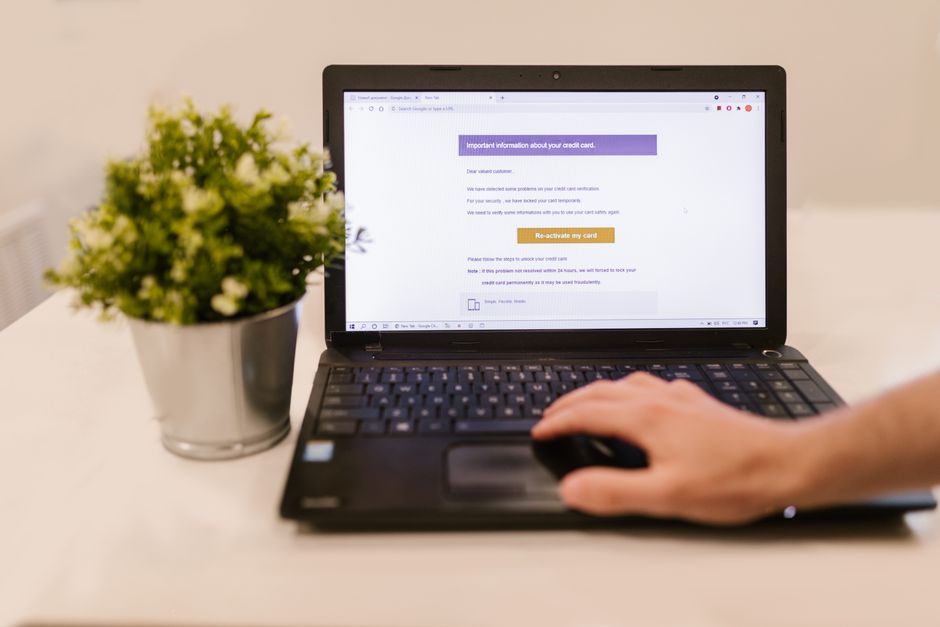
The single most impactful action you can take to clean up your email inbox without starting over is to stop the flow of unwanted emails. Think about it: every promotional email you delete manually is a minute of your life you’ll never get back. This is where you become a digital minimalist.
- Newsletters You Don’t Read: Be honest. That newsletter about advanced Wi-Fi 7 chipsets you subscribed to a year ago? If you haven’t opened it in months, unsubscribe. Scroll to the very bottom of the email and look for the ‘unsubscribe’ link. It’s usually small, sometimes disguised, but it’s legally required to be there in most regions, including the European Union under GDPR regulations.
- Promotional Emails: Did you buy a single item from a store in São Paulo, Brazil, five years ago and now you’re getting daily sales alerts? Unsubscribe.
- Social Media Notifications: Does LinkedIn or Facebook email you every time someone likes a post? Adjust your notification settings directly on those platforms.
Tools like Unroll.me (use with caution and understand its privacy policy, as it requires access to your inbox) can help you see all your subscriptions at once and unsubscribe from many with a single click. Alternatively, dedicate 10-15 minutes each day for a week to just unsubscribing. You’ll be amazed at the difference.
Phase 2: Building Your Digital Command Center with Filters and Rules
Once you’ve stopped the incoming deluge, it’s time to organize what’s left and prepare for future emails. This is where automation becomes your best friend. Every major email client – whether it’s Microsoft Outlook, Gmail, Apple Mail, or others – offers solid filtering and rule-making capabilities.
Make Video Calls Look and Sound Better: A Practical Guide for Everyday Users
Setting Up Smart Filters in Gmail and Outlook
Let’s take a common scenario: you have multiple project emails, client communications, and internal team updates. Instead of them all landing in your primary inbox, you can direct them to specific folders or labels.
- For Gmail: Click the down arrow in the search bar to reveal advanced search options. Enter criteria like sender’s email address, keywords in the subject, or recipient (if it’s sent to a specific alias). Then, click “Create filter” and choose actions like “Skip the Inbox (Archive it),” “Apply the label,” or “Mark as read.” You can even apply this filter to existing conversations. For instance, all emails from your ‘Project X’ team can automatically be labeled ‘Project X’ and archived, keeping your main inbox clean but ensuring you can find them easily when needed.
- For Microsoft Outlook: Go to the “Home” tab, click “Rules,” and then “Manage Rules & Alerts.” Here, you can create new rules based on sender, subject line keywords, or specific words in the body. Actions can include moving the message to a specified folder, marking it with a category, or even forwarding it. For example, all emails containing “Invoice” in the subject line from a specific vendor can be moved to an ‘Accounts Payable’ folder.
The key here is to think about categories that make sense for your workflow. Common categories might include: ‘Action Required,’ ‘Reading List,’ ‘Receipts,’ ‘Personal,’ ‘Project Alpha,’ or ‘Weekly Reports.’ The more you automate the initial sorting, the less time you’ll spend manually organizing.
Phase 3: The Archive and Delete Strategy
When to Archive, When to Delete
This is where many people get stuck. What do you do with those thousands of old emails?
- Delete: If an email holds no future value, no sentimental value, and no legal or historical significance, delete it. This includes old promotional emails you missed unsubscribing from, irrelevant notifications, and purely informational messages that are no longer current.
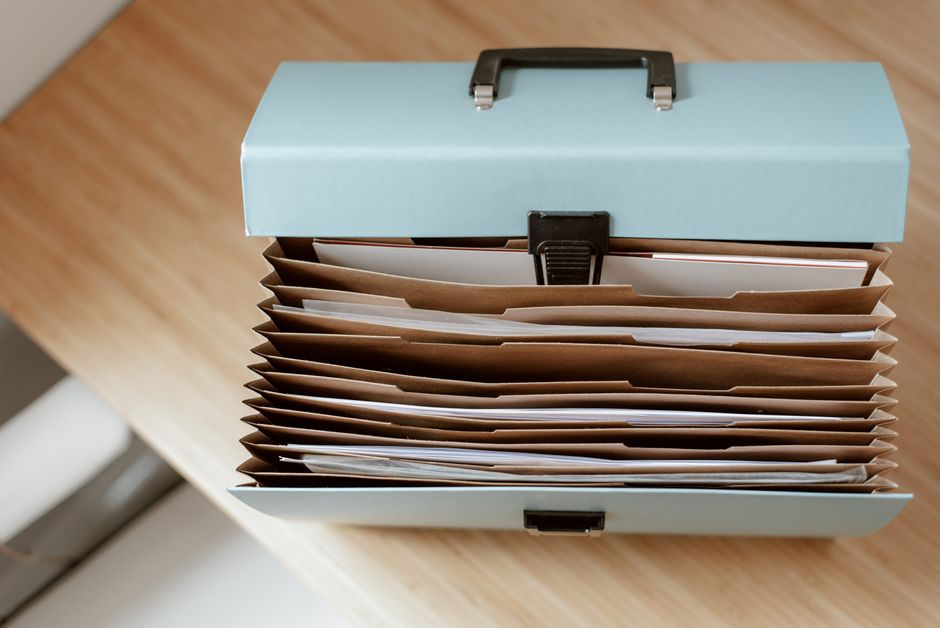
- Archive: For emails that you might need to reference later but don’t require immediate action and don’t need to clutter your inbox, archive them. Archiving effectively removes the email from your primary inbox view but keeps it fully searchable within your email account. This is a powerful feature in most email clients, including Microsoft’s services and Gmail. It’s like putting a document in a filing cabinet – out of sight, but not gone forever. Many remote workers find this especially useful for project histories or client communications that might be revisited months down the line.
A common mistake is to create too many nested folders, making it hard to decide where to put things. Keep your folder structure flat and simple. Rely on your email client’s excellent search capabilities to find archived emails quickly. Just type in a keyword, sender, or date, and it will likely pop up faster than navigating through ten subfolders.
Phase 4: Establishing a Routine for Email Management
Batching and the ‘Two-Minute Rule’
Simply organizing your existing emails isn’t enough; you need a system to maintain the order. This is where routine comes into play.
- Batch Processing: Instead of reacting to every new email notification, designate specific times of the day to check and process emails. For many remote workers, especially those bridging time zones between North America and Europe, checking email once in the morning, once after lunch, and once before logging off can be sufficient. This prevents constant context-switching, which is a major productivity killer.
- The Two-Minute Rule: Coined by productivity guru David Allen, if an email takes less than two minutes to respond to or act upon, do it immediately. This prevents small tasks from piling up. If it takes longer, either schedule time for it, delegate it, or add it to a specific task list (like a dedicated ‘Action Required’ folder).
- Use Password Managers for Efficiency: While not directly related to email organization, a solid password manager like 1Password or LastPass can significantly streamline your online life. By automatically filling in logins for all the services that send you emails, you reduce friction when needing to access accounts to unsubscribe or update preferences, indirectly aiding your inbox cleanup.
Phase 5: Leveraging Specific Email Features
Stars, Flags, and Snooze
Modern email clients offer various features beyond basic folders and filters that can help you prioritize and manage your inbox more dynamically.
- Stars/Flags: Use these for emails that require your attention soon, but not immediately. In Gmail, you can use different colored stars. In Microsoft Outlook, you have flags. This creates a visual cue for important items you need to revisit.
- Snooze: Many clients, including Gmail and some versions of Microsoft Outlook, offer a ‘Snooze’ feature. This is brilliant for emails you can’t act on right now but absolutely need to see again later. Snooze it, and it disappears from your inbox only to reappear at your chosen time, ensuring it doesn’t get lost in the shuffle. This is particularly useful for reminders or tasks tied to future deadlines.
- Templates/Canned Responses: If you find yourself sending the same replies repeatedly, create email templates or canned responses. This saves time and ensures consistency, allowing you to process certain types of emails much faster.
FAQ: What Should Readers Know About Clean Email Inbox?
How do I clean up my old emails fast?
Start by sorting your inbox by sender or date. Mass unsubscribe from obvious spam and old newsletters. Use your email client’s search function to find emails older than a year and either archive or delete them in bulk, especially promotional or informational ones that no longer hold value. Focus on clearing out the highest volume senders first.
Protect Kids Online Without Spying on Everything: The Smarter Approach
Does Microsoft Outlook have good tools for email organization?
Yes, Microsoft Outlook is exceptionally powerful for email organization. Its ‘Rules’ feature allows for sophisticated automation, moving emails to specific folders based on sender, subject, or keywords. ‘Categories’ help tag emails for easy identification, and ‘Quick Steps’ can combine multiple actions into a single click, greatly streamlining your workflow for regular email tasks.
What are the key benefits of a clean email inbox?
A clean email inbox significantly boosts productivity by reducing cognitive load and stress. It ensures you don’t miss important communications, makes searching for specific information much faster, and helps you maintain focus by minimizing distractions. It transforms email from a chaotic burden into an efficient communication tool, freeing up mental space for more critical tasks.
Can I effectively organize my email across different devices?
Absolutely. Modern email services like Gmail, Microsoft Exchange (used by Outlook), and others use cloud-based synchronization. Any changes you make—moving emails to folders, marking as read, or deleting—will automatically sync across all your devices, whether you’re accessing email from your desktop in Canada, your phone in Germany, or a tablet in Argentina, provided you’re using IMAP or Exchange protocols.
Is Wi-Fi 7 important for email management?
While Wi-Fi 7 offers significant speed and efficiency upgrades, it’s not directly critical for everyday email management. Email, even with large attachments, doesn’t typically demand the extreme bandwidth that Wi-Fi 7 provides. A stable internet connection of any modern Wi-Fi standard (like Wi-Fi 5 or 6) is perfectly sufficient for efficient email processing and synchronization.
Key Takeaways for a Tidy Inbox
Taking control of your email inbox doesn’t have to be an overwhelming ordeal. The goal isn’t necessarily ‘Inbox Zero’ (though it’s a nice aspiration), but rather ‘Inbox Sanity’ – a system where you feel in control, not overwhelmed. Remember, the journey to a manageable inbox is ongoing, but the initial efforts yield significant returns.
Start with the unsubscribe button; it’s the most powerful tool against email overload. Then, leverage automation with filters and rules in your email client, whether it’s Microsoft Outlook or Gmail, to sort incoming mail before it even hits your primary view. Finally, establish a consistent routine for processing emails, using archiving and the ‘two-minute rule’ to keep things tidy.
By implementing these strategies, you won’t just temporarily clean up your email inbox without starting over; you’ll build sustainable habits that keep it organized for good. This frees up mental energy, reduces stress, and allows you to focus on the work that truly matters, no matter where you’re working in the world.
Ready for more practical advice to boost your digital productivity and tech know-how? Read more useful technology guides on Le Daily Post.