To properly back up photos, documents, and phones without overcomplicating it, the most effective strategy involves a ‘3-2-1 rule’ approach: keep at least three copies of your data, store them on two different types of media (like a cloud service and an external hard drive), and ensure one copy is off-site. This layered method protects against device failure, accidental deletion, and even major disasters, making recovery straightforward and stress-free. Services like Google Photos, Apple iCloud, and external SSDs offer practical solutions for everyday users.
It happens to the best of us: that stomach-dropping moment when your phone takes an unexpected swim, your laptop goes dark for good, or a critical file vanishes into the digital ether. The immediate thought isn’t about the hardware, but about the irreplaceable memories and vital information trapped inside. The family photos from your European vacation, the kids’ school projects, important tax documents, or even just your contacts list – all potentially gone forever.
For many families, especially across North America, South America, and Europe, our lives are increasingly digital. We capture moments, manage finances, and communicate primarily through our devices. Yet, the essential task of safeguarding this digital legacy often gets pushed aside, deemed too complex or time-consuming. The good news is that backing up your photos, documents, and phone data doesn’t have to be a daunting chore reserved for tech gurus. With a few smart choices and consistent habits, you can protect your digital assets effectively.
Understanding how to back up photos, documents, and phones properly without overcomplicating it is crucial for peace of mind. Let’s break down straightforward strategies that work for real people, using real tools you already know or can easily access.
Quick Start: The Core Principles of Data Backup
- The 3-2-1 Rule: This is the gold standard. Keep at least three copies of your data, on two different types of storage, with one copy off-site.
- Automate Everything Possible: Manual backups are easily forgotten. Set it and forget it!
- Mix and Match Storage: Don’t put all your eggs in one basket. Combine cloud services with physical drives.
- Regular Checks: Periodically verify that your backups are working and that you can access your data.
- Prioritize What Matters Most: Start with irreplaceable items like photos and critical documents.
- Security First: Use strong passwords and, where available, two-factor authentication for cloud services.
- Be Patient with the First Backup: Large initial uploads take time, especially for families with years of digital history.
- Consistency is Key: Make backup a routine, not a one-time event.
Cloud Storage: Your Digital Safety Net
Cloud storage is often the easiest and most accessible way to back up photos, documents, and phones for most people. It’s essentially renting space on someone else’s super-secure, redundant servers. The biggest benefit? Your data is off-site automatically, fulfilling a critical part of the 3-2-1 rule.
Google Photos and Google Drive: A Family Favorite
For Android users, and increasingly for iPhone users too, Google Photos and Google Drive are powerhouse tools. Google Photos used to offer unlimited free storage for ‘high-quality’ (slightly compressed) photos, but now operates under a shared 15GB free tier across all Google services. If you’re heavy on photos, you’ll likely need a Google One subscription, which offers affordable tiered storage plans starting from 100GB. This is particularly popular in North America and parts of Europe due to its deep integration with Android devices and Google Workspace.
- Pros: Excellent search capabilities for photos, automatic syncing, easy sharing, available across all devices.
- Cons: Requires a paid subscription for significant storage, privacy concerns (though Google has strong security protocols).
- Practical Tip: Install the Google Photos app on your phone and enable automatic backup. For documents, use the Google Drive app and ensure important files are uploaded and synced.
Apple iCloud: Seamless Integration for the Apple Ecosystem
If your family lives within the Apple ecosystem – iPhones, iPads, Macs – iCloud is your go-to. It offers 5GB of free storage, which for most people is barely enough for one device, let alone backing up photos, documents, and phones comprehensively. Upgrading to an iCloud+ plan (starting at 50GB) is almost a necessity for most Apple users. iCloud backs up everything from device settings and app data to photos, videos, and documents stored in iCloud Drive.
- Pros: Deep integration, virtually invisible background backups, excellent for restoring entire devices, strong privacy focus.
- Cons: Limited free storage, primarily designed for Apple devices (though accessible via web for Windows users), can get pricey for large families.
- Practical Tip: Go to Settings > Your Name > iCloud on your iPhone and ensure ‘iCloud Backup’ is enabled and that Photos, Drive, and other essential apps are syncing.
Dropbox and Microsoft OneDrive: Versatile Options
Dropbox and Microsoft OneDrive are excellent alternatives, especially if your family uses a mix of operating systems (e.g., Windows PCs, Android phones, and MacBooks). Dropbox pioneered cloud file syncing and remains a strong contender with solid sharing features. OneDrive integrates smoothly with Windows and Microsoft 365, offering large storage options with subscriptions.
- Pros: Cross-platform compatibility, strong collaboration features, reliable syncing.
- Cons: Free tiers are often very small (e.g., Dropbox offers 2GB), can feel less integrated than native options for specific ecosystems.
- Practical Tip: For important documents, create a dedicated folder in Dropbox or OneDrive and ensure all family members save their shared files there.
External Drives: The Physical Backup
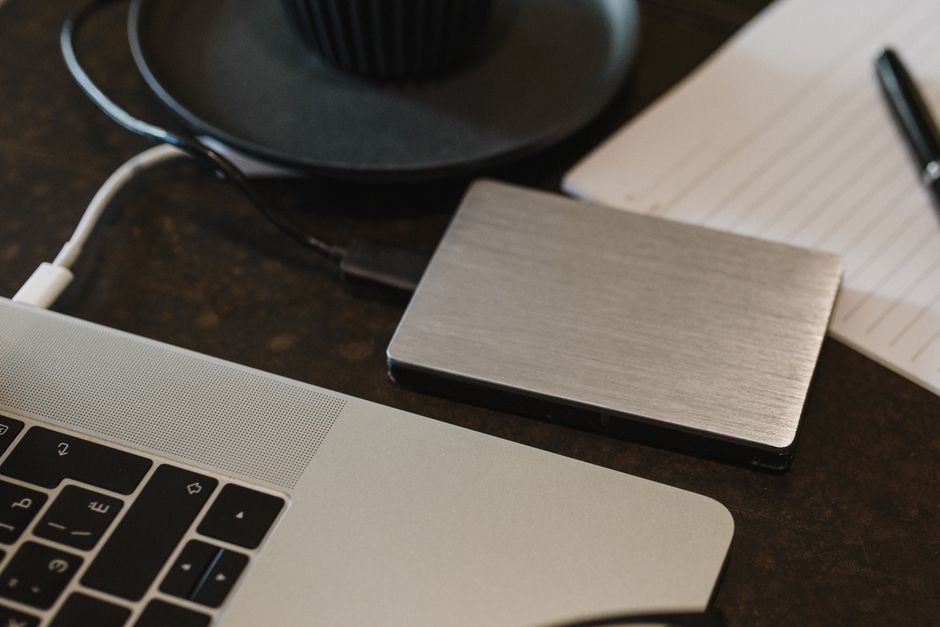
While the cloud offers convenience, a physical external drive provides a local, independent copy of your data, crucial for the ‘two different types of storage’ part of the 3-2-1 rule. They’re also invaluable for very large initial backups or when internet connectivity is spotty, which can still be a challenge in certain remote areas of South America or even parts of rural North America.
Choosing a Tablet for Reading, Work, and Entertainment: A Practical Buying Guide
External Hard Drives (HDDs) vs. Solid State Drives (SSDs)
Traditionally, external hard drives (HDDs) have been the budget-friendly choice for sheer storage capacity. They’re great for archiving large amounts of data, like years of family videos. However, they have moving parts, making them more susceptible to damage if dropped. Seagate and Western Digital are common brands.
Solid State Drives (SSDs) are the newer, faster, and more durable option. While they cost more per gigabyte, their speed makes backups much quicker, and their lack of moving parts means they can withstand more abuse. Brands like Samsung T7 or Crucial X8 are excellent portable SSDs.
- Pros (External Drives): One-time purchase, fast local access, no internet required after initial setup, good for very large files.
- Cons: Can be lost, stolen, or damaged; requires manual initiation (unless scheduled), not off-site by default.
- Practical Tip: Get at least two external drives. Keep one at home, and the other at a relative’s house, or a safety deposit box for off-site storage.
How to Use External Drives for Photos and Documents
For photos and documents, simply connect the drive to your computer and drag-and-drop your files. For a more structured approach, consider backup software. Windows has ‘File History’ and macOS has ‘Time Machine,’ both excellent built-in tools that automate incremental backups to an external drive. They will periodically back up photos, documents, and other files in the background.

Phone Backups: More Than Just Photos
Your phone isn’t just a camera; it’s a repository of contacts, messages, app data, and settings. Backing up your phone properly means ensuring all this critical information is preserved.
iPhone Backups: iCloud and Computer
As mentioned, iCloud is the easiest way to back up your iPhone. It can automatically back up your entire device when connected to power, Wi-Fi, and locked. If you prefer a local copy or have limited iCloud storage, you can connect your iPhone to a Mac (using Finder) or a Windows PC (using iTunes) and perform a full encrypted backup. This is a solid option, especially if you live in an area with slower internet or prefer complete control over your data.
Android Backups: Google Drive and Computer
Android devices typically back up core data (contacts, calendar, Wi-Fi passwords, some app data) to Google Drive automatically. Photos and videos are best handled separately via Google Photos (or another cloud service like Dropbox). For a more complete device backup, some Android manufacturers (like Samsung) offer their own backup solutions that can save to a computer or external drive. Third-party apps can also create full device backups.
Password Managers: An Unsung Hero for Backup Safety
You can have the best backup strategy in the world, but if you can’t remember the passwords to your cloud services or encrypted external drives, you’re in trouble. This is where password managers like 1Password, LastPass, or Bitwarden become indispensable.
Don’t Let App Subscriptions Bleed Your Budget Dry: A Small Business Owner’s Guide
These tools generate and store strong, unique passwords for all your accounts, encrypted behind a single master password. They sync across your devices, making it easy to log into services. This is especially vital when managing multiple cloud accounts across family members or devices. Remember, a forgotten password for your backup service is almost as bad as no backup at all.
The Future of Backup: Wi-Fi 7 and Beyond
While Wi-Fi 7 (802.11be) is still in its early stages of adoption, its advent promises significantly faster speeds and lower latency. How does this impact backups? For cloud backups, particularly large initial uploads of photos and videos, Wi-Fi 7 will make the process much quicker and more efficient. Families with multiple devices backing up simultaneously will experience less network congestion. This means less waiting and a smoother experience when you need to back up photos, documents, and phones, reducing the friction that often deters people from maintaining consistent backups. While it won’t change the fundamental strategies, it will make the ‘how’ much more pleasant.
FAQ: Answering Your Backup Questions
How often should I back up my photos?
For photos, ideally, backups should be continuous or at least daily. Cloud services like Google Photos or Apple iCloud can do this automatically in the background as long as your device is connected to Wi-Fi, ensuring that newly captured memories are almost immediately protected.
Is it safe to store all my data in the cloud?
While cloud storage providers like Google, Apple, and Microsoft employ solid security measures and encryption, it’s always wise to follow the 3-2-1 rule. Having at least one local, physical backup copy (on an external drive) adds an extra layer of security and independence, preventing reliance on a single provider.
Can I back up my entire iPhone to an external hard drive?
Yes, you absolutely can. Connect your iPhone to your computer (Mac or Windows PC). On a Mac, use Finder; on a PC, use iTunes. Select your iPhone, choose ‘Back Up Now,’ and ensure you select ‘Encrypt local backup’ for maximum data protection, including passwords and health data.
What is the most secure way to back up sensitive documents?
The most secure way involves a multi-pronged approach: use an encrypted cloud service (ensuring strong, unique passwords and 2FA), and also keep an encrypted copy on a physical external drive that is stored in a secure, off-site location. Consider using file encryption tools for individual sensitive documents before uploading them.
Do Wi-Fi 7 routers help with data backup?
Yes, Wi-Fi 7 routers will improve data backup, especially for cloud-based services. Their significantly higher speeds and lower latency mean faster upload times for large files like photos and videos, and more efficient simultaneous backups from multiple family devices without slowing down your internet connection for other tasks.
Key Takeaways: Keep Your Digital Life Secure
Protecting your digital memories and vital information doesn’t need to be overwhelming. The core principle is simple: redundancy and automation. By embracing the 3-2-1 backup rule – three copies, two types of media, one off-site – you establish a solid defense against data loss. Leverage the convenience of cloud services like Google Photos, Apple iCloud, or Dropbox for automatic, off-site protection, especially for backing up photos, documents, and phones regularly. Supplement this with physical external drives for local, quick access and an independent copy. Finally, don’t underestimate the power of a password manager to secure access to all your backup solutions.
Start small, automate what you can, and make a habit of checking your backups. Your future self, relieved that those precious photos and critical documents are safe, will thank you. Read more useful technology guides on Le Daily Post.