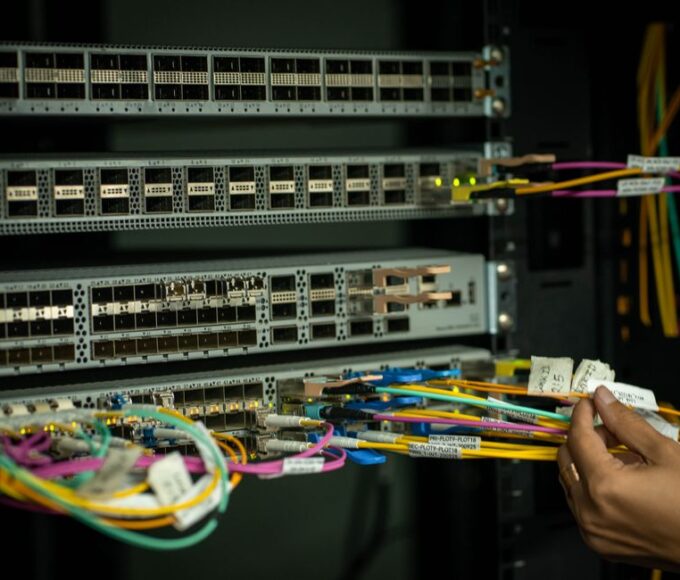
To diagnose slow Wi-Fi and home internet problems, start with a speed test to confirm the issue. Then, check your router’s placement and age. Common culprits include Wi-Fi interference from other devices, an outdated router, too many devices on the network, or even an issue with your internet service provider (ISP). Performing basic troubleshooting steps like restarting your router, checking cables, and updating firmware can often resolve these issues and restore your internet speed.
You’re on an important video call for work, perhaps collaborating with colleagues across Europe, and suddenly your screen freezes. Or maybe you’re trying to stream a movie on a Friday night, relaxing after a long week, and it keeps buffering. Sound familiar? Slow home internet problems, particularly slow Wi-Fi, are a universal headache in our connected world.
It’s more than just an inconvenience; for many, especially the growing number of remote workers in North America, South America, and beyond, a reliable internet connection is fundamental to their livelihood. A sluggish network can tank productivity, disrupt communication, and frankly, just be incredibly frustrating. The good news is that many of these issues are solvable with a bit of methodical diagnosis.
Before you call your ISP in a fit of rage or buy a new router you might not need, let’s walk through how to diagnose slow Wi-Fi and pinpoint the real problem. Often, the solution is simpler than you think.
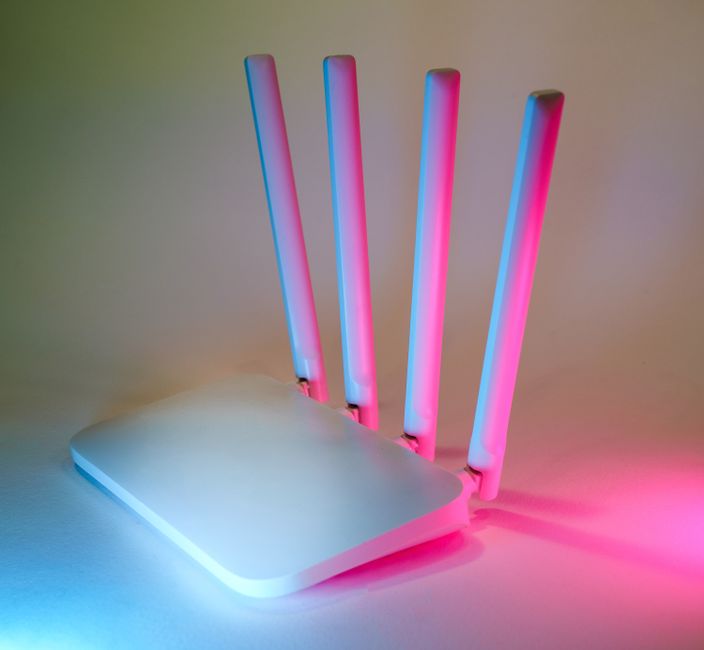
Getting Started: Your Wi-Fi Troubleshooting Checklist
When you’re facing slow Wi-Fi, a structured approach saves time and reduces frustration. Here’s a quick checklist to get you started on diagnosing home internet problems:
- Run a Speed Test: Confirm the actual speed you’re getting versus what you’re paying for.
- Restart Your Router/Modem: The classic IT fix often works wonders.
- Check Cables and Connections: Ensure everything is plugged in securely.
- Update Router Firmware: Outdated software can cause performance issues.
- Assess Router Placement: Location is critical for Wi-Fi signal strength.
- Identify Interference Sources: Other electronics can wreak havoc on your signal.
- Monitor Connected Devices: Too many devices can hog bandwidth.
- Consider Network Security: Uninvited guests can slow you down.
Step-by-Step Diagnosis: Unraveling Your Slow Wi-Fi Mystery
1. The First Test: What Are Your Actual Speeds?
Before doing anything else, you need to know if your internet is actually slow or if your perception is off. Many people pay for a certain speed (e.g., 200 Mbps) but have no idea if they’re receiving it. A speed test is your starting point.
How to Run a Reliable Speed Test
Use reputable services like Ookla Speedtest, Fast.com (powered by Netflix), or Google’s own speed test (just type ‘speed test’ into Google search). For the most accurate results:
- Connect via Ethernet: Plug your computer directly into your router with an Ethernet cable. This eliminates Wi-Fi variables and tests your connection from the ISP to your router.
- Close Other Applications: Ensure no other apps or devices are streaming, downloading, or running bandwidth-intensive tasks during the test.
- Test Multiple Times: Run the test a few times throughout the day to get an average reading.
Compare these wired speeds to what your ISP (e.g., Claro in Brazil, AT&T in the US, BT in the UK) promises. If the wired speeds are significantly lower, the issue might be with your ISP, and it’s time to call them. If wired speeds are good but Wi-Fi speeds are terrible, then your router or home network is the problem.
2. The Router: Your Wi-Fi’s Heartbeat
Your router is the central hub for your home network. Its age, health, and placement dramatically affect your Wi-Fi performance.
Router Placement: Location, Location, Location
A common mistake is tucking the router away in a closet, behind a TV, or in a basement corner. Wi-Fi signals don’t travel well through walls, floors, or large metal objects. For optimal signal strength:
How to Build a Simple Digital Filing System Without Overcomplicating It
- Central Location: Place your router as centrally as possible in your home, ideally in an open area.
- Elevated Position: Put it on a shelf or desk, not on the floor.
- Away From Obstacles: Keep it clear of large electronics like microwaves, cordless phones, and even large fish tanks, which can absorb signals.
In practice, even moving a router a few feet can make a noticeable difference, especially in larger homes common in the suburbs of North America, or multi-story apartments in cities like Buenos Aires or London.
Router Age and Firmware
Technology evolves quickly. An old router (more than 3-5 years old) might not support the latest Wi-Fi standards (like Wi-Fi 6/802.11ax) or simply lack the processing power for modern demands, especially with many smart home devices. Old firmware can also harbor bugs or security vulnerabilities that impact performance.
Check your router’s administration page (usually accessed by typing an IP address like 192.168.1.1 into your browser) for firmware updates. Major brands like Netgear, Linksys, and TP-Link regularly release updates.
3. Network Traffic and Interference: The Invisible Enemies
Even with a perfect router setup, invisible forces can degrade your Wi-Fi performance. These are often significant contributors to home internet problems.
Too Many Devices?
Every device connected to your Wi-Fi—your phone, laptop, smart TV (like a Samsung QLED), a Google Nest Hub, smart lights, smart thermostats, and even your kids’ tablets—consumes bandwidth. If you have many devices actively streaming or downloading simultaneously, your network can get congested. Consider limiting background updates or downloads on less critical devices.
Wi-Fi Interference
Your Wi-Fi uses radio waves, and so do many other household items, creating a traffic jam. Common sources of interference include:
- Neighboring Wi-Fi Networks: Especially in densely populated areas like apartment buildings in Madrid or Santiago, multiple Wi-Fi networks on the same channel can compete for signal.
- Other 2.4 GHz Devices: Microwaves, cordless phones, baby monitors, and even older Bluetooth devices operate on the same 2.4 GHz frequency as some Wi-Fi bands.
- Physical Obstacles: Walls (especially concrete), metal objects, and even water (like a fish tank) can block or degrade Wi-Fi signals.
Most modern routers offer both 2.4 GHz and 5 GHz bands. The 2.4 GHz band offers greater range but slower speeds and more interference. The 5 GHz band is faster but has a shorter range and is more easily obstructed. Try connecting devices closer to the router to the 5 GHz band for better performance. Many routers can automatically steer devices to the best band, but sometimes manual selection is required.
4. Securing Your Network: Keeping Out Bandwidth Bandits
An unsecured or poorly secured Wi-Fi network is an open invitation for others to use your internet, stealing your bandwidth and slowing you down. This is an overlooked aspect of how to diagnose slow Wi-Fi.
Strong Passwords and Encryption
Always use a strong, unique password for your Wi-Fi network and ensure WPA2 or WPA3 encryption is enabled. Avoid using default passwords, as these are often easily guessable or publicly known.
Check for Unknown Devices
Most routers have a feature in their admin interface that shows a list of connected devices. Periodically check this list for any unfamiliar devices. If you find one, change your Wi-Fi password immediately and kick them off your network.
5. When All Else Fails: Your ISP and Advanced Solutions
If you’ve exhausted all the above troubleshooting steps and your home internet problems persist, it might be time to look beyond your own equipment.
Contact Your Internet Service Provider (ISP)
If your wired speed tests are consistently lower than what you’re paying for, or if you’re experiencing frequent disconnections, it’s time to call your ISP. They can perform remote diagnostics on their end, check for outages in your area, or even send a technician to inspect the lines to your home. Sometimes, the problem isn’t with your Wi-Fi but with the signal coming into your house from providers like Vivo in Brazil or Comcast in the USA.
Consider Network Upgrades
If you have a large home, thick walls, or a high demand for bandwidth, a single router might not be enough. Consider these solutions:
- Mesh Wi-Fi Systems: Systems like Google Nest Wi-Fi or Eero use multiple units to create a seamless, strong Wi-Fi signal throughout your entire home, eliminating dead zones. This is especially useful for smart home setups that rely on consistent connectivity across many devices.
- Wi-Fi Extenders/Repeaters: These can boost your existing signal but often cut bandwidth in half. Use them only if a mesh system isn’t an option and you need a small coverage boost.
- Powerline Adapters: These use your home’s electrical wiring to extend network access, offering a wired connection in distant rooms where Wi-Fi struggles.
FAQ: Diagnosing Slow Home Internet Problems
Why is my Wi-Fi slow but my internet speed test is fast?
If your wired internet speed test shows good results, but your Wi-Fi is slow, the problem likely lies within your home network’s wireless setup. Common causes include router placement, Wi-Fi interference from other devices, outdated router firmware, or too many devices connected to your Wi-Fi simultaneously. Optimizing these factors should improve your wireless performance.
How often should I restart my router?
Restarting your router regularly, perhaps once a month or whenever you notice a slowdown, can often resolve minor performance issues. A restart clears the router’s memory, refreshes its IP connections, and can fix temporary glitches. It’s a simple yet effective first step in troubleshooting slow Wi-Fi and should always be tried before more complex diagnostics.
Does my smart home device impact my Wi-Fi speed?
Yes, smart home devices, such as Google Nest products, Samsung SmartThings hubs, or Alexa-enabled devices, can impact Wi-Fi speed, especially if you have many connected. While individual devices use minimal bandwidth, a large number of them collectively add to network traffic. Ensure your router can handle multiple connections and consider a mesh Wi-Fi system for extensive smart home setups.
What’s the difference between 2.4 GHz and 5 GHz Wi-Fi bands?
The 2.4 GHz band offers wider coverage and better penetration through walls but is generally slower and more prone to interference from other household devices. The 5 GHz band provides faster speeds and less interference but has a shorter range and is more easily obstructed. For optimal performance, use 5 GHz for devices close to the router and 2.4 GHz for devices further away.
Can my neighbors slow down my Wi-Fi?
Yes, your neighbors’ Wi-Fi networks can cause interference, especially if you live in a densely populated area like an apartment complex in São Paulo or New York. Multiple networks operating on the same or overlapping channels can create congestion, degrading your Wi-Fi performance. Using a router that supports automatic channel selection or manually choosing a less congested channel can help mitigate this.
Key Takeaways: Solving Your Slow Wi-Fi Woes
Dealing with slow home internet problems can feel like a losing battle, but with a systematic approach, you can often diagnose slow Wi-Fi and improve your connection significantly. Remember, the journey starts with understanding your actual speeds and then methodically working through potential culprits.
Start with the basics: A simple router restart, checking cables, and updating firmware can often resolve many common issues. Then, focus on your router’s environment. Optimal placement and minimizing interference are critical for a strong, stable Wi-Fi signal throughout your home.
Finally, consider your network demands. If you have a house full of smart home devices, remote workers, and streaming enthusiasts, your existing setup might simply be overwhelmed. Upgrading to a newer router or a mesh Wi-Fi system could be the long-term solution you need. Don’t let slow internet hold you back!
Read more useful technology guides on Le Daily Post.