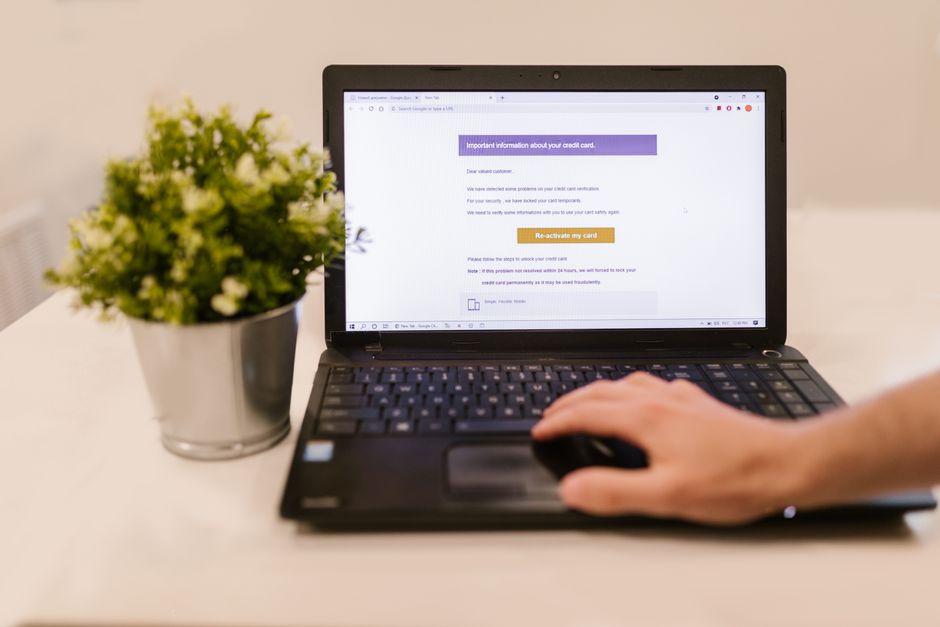
We’ve all been there: an email pops up, seemingly from your bank, Amazon, or even your IT department. It looks legitimate, perhaps even urgent, demanding you click a link to ‘verify your account’ or ‘update your payment information.’ Before you instinctively click, take a breath. That split second of caution can be the difference between safeguarding your personal data and falling victim to a sophisticated phishing attempt. Understanding how to spot phishing emails and fake login pages in real life is no longer just for tech experts; it’s a fundamental skill for anyone interacting with the internet, particularly remote workers who rely heavily on online platforms for their daily tasks.
These scams aren’t theoretical threats; they’re daily occurrences. From compromised Apple IDs to fake Microsoft login prompts, cybercriminals constantly evolve their tactics to trick even the most vigilant among us. Knowing the red flags and applying practical scrutiny can save you from financial loss, identity theft, or a major headache with your company’s security team.
Let’s dive into the specifics of how to recognize these digital traps and protect yourself, no matter where you’re working from – be it a home office in North America, a co-working space in Europe, or a café in South America.
The Anatomy of a Phishing Email: What to Look For
Phishing emails are designed to mimic legitimate communications, but they almost always contain subtle (or not-so-subtle) clues that betray their true nature. Your first line of defense is a healthy dose of skepticism.
Sender Address Scrutiny: Beyond the Display Name
The display name in your inbox might say ‘Apple Support’ or ‘Microsoft Security,’ but that’s easily faked. The critical detail is the actual email address. Hover your mouse cursor over the sender’s name (without clicking!) to reveal the full email address. Does it match the legitimate domain? For instance, if it’s supposedly from Amazon, you should see something like ‘@amazon.com’ or ‘@amazon.co.uk’, not ‘@amazon-security-update.ru’ or ‘@amaz0n.biz’. Even slight misspellings or unusual subdomains are major red flags.
In practice, many phishing attempts targeting remote workers will mimic internal IT or HR departments. Always check that the sender’s domain matches your company’s official domain. If your company is ‘examplecorp.com,’ an email from ‘[email protected]’ is highly suspicious.
Suspicious Links: Hover Before You Click
This is arguably the most important tip for how to spot phishing emails and fake login pages. Phishing emails almost invariably contain links intended to take you to a malicious website. Just like with sender addresses, never click a link without first inspecting it. Hover your mouse cursor over any link in the email. A small pop-up or status bar (usually at the bottom of your email client) will display the actual URL. Does it match the intended destination? If the email says ‘click here to update your Netflix account’ and the link shows ‘hXXps://netflix-security-alert.xyz/login’, do not click it. Netflix’s official login page will always be on the ‘netflix.com’ domain.
A common mistake is assuming a link is safe because it uses ‘HTTPS’. While HTTPS indicates an encrypted connection, it doesn’t guarantee the website itself is legitimate. A scammer can easily set up an HTTPS-secured fake login page.
Urgency, Threats, and Generic Greetings
Cybercriminals rely on urgency and fear to bypass your critical thinking. Emails that threaten account closure, immediate suspension, or legal action unless you ‘act now’ are strong indicators of phishing. Similarly, legitimate companies rarely use generic greetings like ‘Dear Customer’ or ‘Dear Account Holder’ when they know your name. A personalized greeting is a good, though not foolproof, sign of legitimacy.
For remote workers, be wary of emails claiming ‘your VPN access will be revoked’ or ‘payroll information needs immediate update’ if they come out of the blue or contain any of the other red flags.
Use QR Codes Safely in Restaurants, Travel, and Payments More Effectively: A Modern Guide
Identifying Fake Login Pages: The Browser is Your Friend
Once you’ve clicked a suspicious link (hopefully not!), or if you’re generally suspicious about a login page, there are several ways to determine its authenticity.
URL Verification: The Address Bar Never Lies
The most crucial step in identifying fake login pages is to examine the URL in your browser’s address bar. This is where many scams fall apart. Compare the URL to the official website’s address. Look for:
- Misspellings: ‘facebok.com’ instead of ‘facebook.com’, ‘amaz0n.com’ instead of ‘amazon.com’.
- Extra words or subdomains: ‘paypal-security.com’ instead of ‘paypal.com’, or ‘login.microsoft.com.security-update.net’ (the true domain is ‘security-update.net’, not ‘microsoft.com’).
- Unusual top-level domains (TLDs): While legitimate companies use various TLDs, if you expect ‘.com’ and see ‘.ru’ or ‘.xyz’ for a known service, be suspicious.
Always type the legitimate URL directly into your browser’s address bar or use a trusted bookmark. Never rely on links from emails or untrusted sources for sensitive logins.
Security Indicators: HTTPS and the Lock Icon
While an HTTPS connection doesn’t guarantee legitimacy, its absence is a definite red flag. Look for ‘https://’ at the beginning of the URL and a padlock icon in your browser’s address bar. Most modern browsers will also indicate if a connection is not secure. If you’re on a page asking for login credentials and it doesn’t have HTTPS, close it immediately.
For example, when logging into your bank in Europe or North America, you will always see the padlock icon and a green ‘HTTPS’ in the address bar, often accompanied by the bank’s verified name. This visual cue confirms a secure, authenticated connection.
Branding and Content Quality
Fake login pages often try to mimic the official site’s branding, but they frequently make mistakes. Look for:
- Poor quality logos or images: Blurry, pixelated, or slightly off-color graphics.
- Grammar and spelling errors: Legitimate companies have professional content teams; typos are rare on official pages.
- Missing elements: Does the page lack common links like ‘Privacy Policy,’ ‘Terms of Service,’ or contact information usually found on a real login page?
- Unusual requests: Is the page asking for information it usually doesn’t, like your mother’s maiden name *and* your full social security number, or perhaps a password reset for an account you don’t even have?
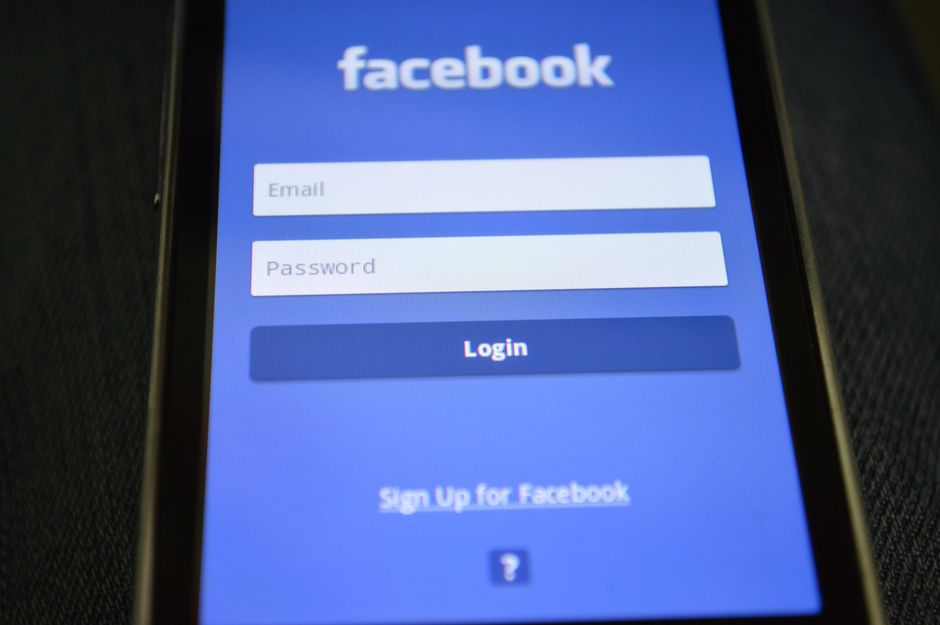
Even major tech companies like Apple and Microsoft are frequently impersonated. If you suspect an Apple ID login page is fake, compare it against a known good one. Does it have the exact same layout, font, and available options? If not, proceed with extreme caution.

Beyond Emails and Login Pages: Other Vectors of Attack
Phishing isn’t limited to emails. Attackers use various channels to try and trick you.
Smishing (SMS Phishing) and Vishing (Voice Phishing)
Your mobile phone is also a target. Smishing involves deceptive text messages, often linking to fake sites or asking for personal details. Vishing uses phone calls where attackers impersonate banks, government agencies, or tech support (like someone claiming to be from ‘Microsoft Support’ trying to fix a non-existent computer problem).
In South America, for example, SMS scams are prevalent, often promising lottery winnings or urgent bank updates. Always verify such messages through official channels, never by calling a number or clicking a link provided in the suspicious message.
A Phone Based on Battery, Camera, and Updates: The Buyer Checklist
Malicious Wi-Fi Networks: The Dangers of Public Wi-Fi 7 (and older)
While Wi-Fi 7 promises incredible speeds and security enhancements, any public Wi-Fi network, regardless of its generation, carries risks. Cybercriminals can set up fake Wi-Fi hotspots (known as ‘evil twins’) that mimic legitimate ones (e.g., ‘Starbucks Free Wi-Fi’ instead of the real ‘Starbucks Guest’). If you connect to an evil twin, your traffic can be intercepted, making you vulnerable to having your login credentials stolen even if you navigate to a legitimate site.
Always use a Virtual Private Network (VPN) when connecting to public Wi-Fi, especially if you’re a remote worker handling sensitive data. This encrypts your traffic and adds a layer of protection against snooping.
What Should Readers Know About Spot Phishing Emails and Fake Login Pages?
The most important takeaway is that vigilance and skepticism are your best tools. Never assume an email or login page is legitimate simply because it looks official. Always take a moment to verify, especially when dealing with requests for personal information, financial details, or login credentials.
Remote workers, in particular, must develop a keen eye for these threats. Your company’s security depends on it, and a successful phishing attack can have severe consequences, from data breaches to financial losses. Regularly updating your operating systems, browsers, and security software (on both Apple macOS and Microsoft Windows devices) is also crucial, as these updates often patch vulnerabilities that phishers exploit.
Frequently Asked Questions
What is the difference between phishing and spam?
Spam is unsolicited bulk email, often annoying but not necessarily malicious, like marketing messages you didn’t sign up for. Phishing, however, is a specific type of malicious spam designed to trick you into revealing sensitive information, usually disguised as a trustworthy entity like a bank or a well-known service provider.
Can I get a virus from just opening a phishing email?
Generally, no. Simply opening a phishing email is usually safe, as long as your email client is up-to-date and configured to prevent automatic loading of active content. The danger comes when you click on malicious links or download infected attachments embedded within the phishing email, which can then install malware or direct you to fake login pages.
How can I report a phishing email or fake login page?
You can report phishing emails to your email provider (e.g., Gmail, Outlook have ‘Report Phishing’ options) and to organizations like the Anti-Phishing Working Group (APWG). For fake login pages impersonating a specific company, notify that company’s customer support or security team directly. In many regions, government cybersecurity agencies also accept reports.
Does multi-factor authentication (MFA) protect against phishing?
Multi-factor authentication (MFA) significantly enhances your security against phishing. Even if a phisher manages to steal your password via a fake login page, they often won’t be able to log in without the second factor (e.g., a code from your phone or a biometric scan). However, sophisticated phishing attacks (like man-in-the-middle attacks) can sometimes bypass MFA, so it’s not a foolproof solution.
Are Mac users safe from phishing scams?
No, Mac users are not immune to phishing scams. While macOS has solid security features that make it less susceptible to certain types of malware than Windows, phishing attacks target human behavior, not operating systems. A fake login page designed to steal your Apple ID credentials will work just as effectively on a Mac as it would on a Windows PC if you fall for the trick.
What should I do if I think I’ve fallen for a phishing scam?
If you suspect you’ve entered your credentials on a fake login page, immediately change your password on the legitimate service. If you provided banking details, contact your bank or credit card company at once. If it’s a work account, inform your IT department without delay. Monitor your accounts for suspicious activity and consider freezing your credit if personal identifying information was compromised.
Final Thoughts on Staying Secure
The digital world is full of conveniences, but it also demands constant vigilance. Learning how to spot phishing emails and fake login pages is an ongoing education. The tactics evolve, but the core principles of verification and skepticism remain timeless. By applying these practical tips, you can significantly reduce your risk and protect your digital life, whether you’re working remotely or just browsing the web. For more useful technology guides and cybersecurity tips, be sure to read more useful technology guides on Le Daily Post.