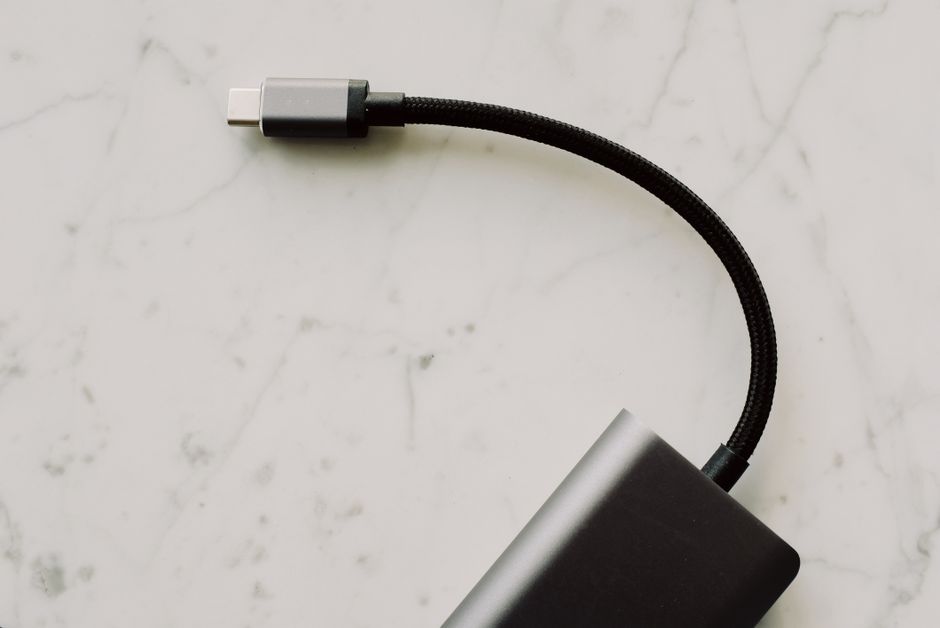
USB-C confusion stems from its versatile but complex capabilities. It’s not just a connector; it’s a standard that encompasses various power delivery (PD) profiles, data transfer speeds (USB 2.0, 3.2, Thunderbolt), and video output modes. What truly matters is matching the cable and charger’s specifications to your device’s needs. A charger’s wattage must meet or exceed the device’s requirement for optimal charging, while a cable needs to support both the required wattage for power and the necessary data speed (e.g., 5Gbps for external drives, 40Gbps for high-end displays) for data transfer. Failure to match these can result in slow charging, no data transfer, or even damaged devices.
It started with such promise: one port to rule them all. USB-C was introduced as the universal connector, designed to end the frustrating hunt for the right cable. For years, we’d juggled micro-USB for Android phones, proprietary Lightning for iPhones, barrel connectors for laptops, and chunky HDMI cables for displays. USB-C was meant to simplify life.
Yet, here we are, often more confused than ever. A new iPhone comes with USB-C. Android phones have had it for years. Laptops, tablets, even some smart home devices from brands like Google now use it. But just because two devices have a USB-C port doesn’t mean any USB-C cable or charger will work the same way. The market is flooded with cables that look identical but offer wildly different performance.
This USB-C cable charger guide is here to clear up the confusion, explaining what actually matters when you’re buying new accessories or trying to figure out why your phone isn’t fast charging.
Understanding the Layers of USB-C
To truly navigate the world of USB-C without constant USB-C confusion
, you need to understand that USB-C isn’t just a physical port shape. It’s a whole ecosystem of underlying technologies. Think of the connector as the ‘doorway,’ but what happens behind that door depends on the ‘house’ (your device) and the ‘pathway’ (your cable) it connects to.
The primary technologies that dictate USB-C’s capabilities are:
- USB Power Delivery (USB PD): This is the key to fast charging. USB PD allows for higher power transfer, up to 240W in the latest specifications, adapting the voltage and current to what a device needs. It’s why a single USB-C charger can fast-charge your phone, tablet, and even a powerful laptop.
- USB Data Transfer Speeds: Just because it’s USB-C doesn’t mean it’s fast. USB-C ports can support older USB 2.0 speeds (480 Mbps), more common USB 3.2 Gen 1 (5 Gbps, often called SuperSpeed USB), USB 3.2 Gen 2 (10 Gbps), and even USB 3.2 Gen 2×2 (20 Gbps). Then there’s Thunderbolt, a high-performance standard (currently Thunderbolt 3 and 4, offering 40 Gbps) that uses the USB-C connector.
- Alternate Modes (Alt Modes): This is how USB-C can carry non-USB signals, like DisplayPort for video output, or HDMI, allowing you to connect your laptop to an external monitor with a single cable.
Understanding these three pillars is fundamental to avoiding the frustration of a slow charger or a cable that simply won’t display video.
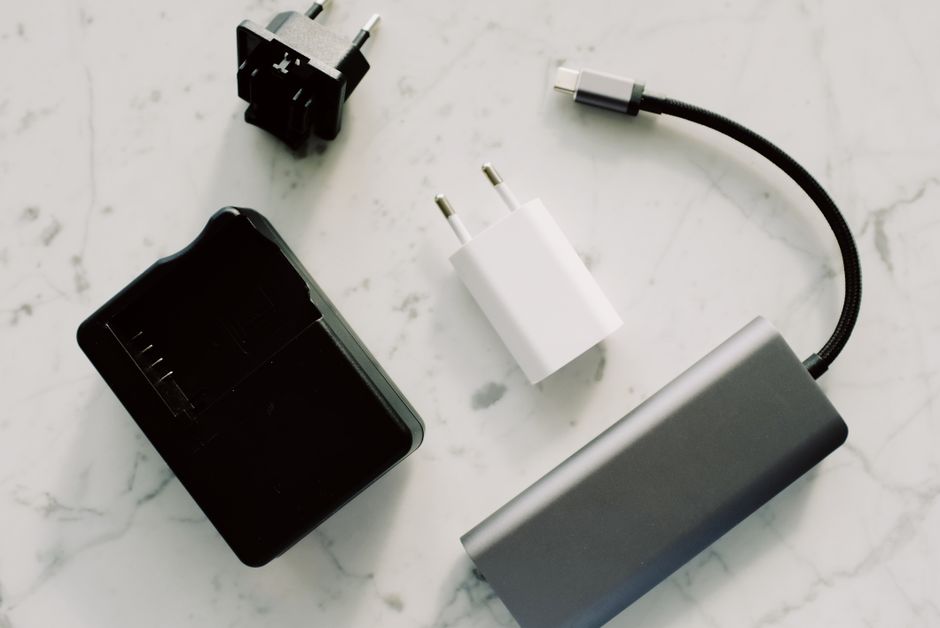
Practical Tips for Choosing the Right USB-C Accessories
Given the complexity, how do you make the right choice? It comes down to identifying your needs and checking specifications.
1. Match Charger Wattage to Your Device
A common mistake is assuming all USB-C chargers are equal. For your phone, a 20W charger might be plenty for fast charging. For a laptop like a MacBook Air or a Dell XPS, you’ll need 60W or higher. Check your device’s original charger or the manufacturer’s specifications. A lower wattage charger won’t harm your device, but it will charge it slowly, if at all, especially under heavy use. A higher wattage charger, however, is generally safe because of USB PD negotiation – your device will only draw what it needs.
Don’t Let App Subscriptions Bleed Your Budget Dry: A Small Business Owner’s Guide
2. Prioritize Power Delivery (PD) on Cables for Charging
If you’re buying a cable primarily for charging, ensure it’s rated for the wattage you need. Cables rated for 60W, 100W, or even 240W are available. Many cheaper cables are only rated for 60W, which is fine for most phones but insufficient for many laptops. Look for phrases like ‘USB-C PD’ or ‘E-Marker chip’ (which helps cables communicate their capabilities) in the product description.
3. Consider Data Speed for External Drives or Docks
If you’re connecting an external SSD, a USB-C hub with multiple ports, or a docking station, the cable’s data transfer speed becomes critical. A basic USB 2.0 USB-C cable will severely bottleneck a fast external drive. Look for ‘USB 3.2 Gen 2’ (10 Gbps) or ‘Thunderbolt’ (40 Gbps) cables if you need high-speed data transfer or multiple peripherals.
4. For Video Output, Look for DisplayPort Alt Mode or Thunderbolt
Want to connect your laptop to a monitor via a single USB-C cable? You need a cable that supports DisplayPort Alternate Mode (often just called ‘DP Alt Mode’) or is a Thunderbolt cable. Not all USB-C cables support video output. This is especially important for users in regions like Europe where USB-C monitors are increasingly common in office setups.
5. Cable Length Impacts Performance (Sometimes)
For high-speed data (like Thunderbolt or USB 3.2 Gen 2) and high-wattage charging, shorter cables are generally better for reliability and minimizing signal loss. Very long USB-C cables (over 2 meters) might struggle to deliver full performance unless they are ‘active’ cables with built-in signal boosters, which are usually more expensive.
6. Buy from Reputable Brands
While generic cables can save money, buying from trusted brands like Anker, Belkin, Ugreen, or even directly from device manufacturers (Apple, Samsung, Google) often guarantees compliance with standards and better build quality. This is particularly important for USB-C cable charger guide components, where safety and reliability are paramount.
Comparing USB-C Cable Types
To help visualize the differences, here’s a simplified comparison of common USB-C cable types:
| Cable Type | Max Power (approx.) | Max Data Speed | Video Output | Typical Use Case |
|---|---|---|---|---|
| Basic USB-C 2.0 (Charge-only) | 60W | 480 Mbps (USB 2.0) | No | Charging low-power devices, older phones. |
| USB-C 3.2 Gen 1 (Data & Charge) | 60W – 100W | 5 Gbps (USB 3.2 Gen 1) | Often No | Faster phone charging, connecting basic external drives. |
| USB-C 3.2 Gen 2 (Data & Charge) | 60W – 100W | 10 Gbps (USB 3.2 Gen 2) | Often Yes (DP Alt Mode) | Fast charging, fast external drives, some monitors. |
| USB-C Full-Featured (20Gbps / 240W) | Up to 240W | 20 Gbps (USB 3.2 Gen 2×2) | Yes (DP Alt Mode) | High-power laptops, high-speed peripherals. |
| Thunderbolt 3/4 | Up to 100W | 40 Gbps | Yes (Dual 4K or Single 8K) | High-end docks, external GPUs, multiple high-res monitors. |
Common USB-C Mistakes to Avoid
Even with good intentions, it’s easy to fall into some traps. Here are a few common pitfalls to steer clear of:
Using a Low-Wattage Charger for a High-Power Device
This is a frequent source of USB-C confusion
. Plugging your 100W laptop into a 20W phone charger won’t damage it, but it will charge excruciatingly slowly, if at all. In some cases, if the device is in heavy use, it might even discharge slowly. Always verify the charger’s output wattage matches or exceeds your device’s needs.
Expecting Fast Data Transfer from a Cheap Cable
Many inexpensive USB-C cables are designed purely for charging and only support USB 2.0 data speeds (480 Mbps). This is fine for transferring photos from your phone, but it will be a significant bottleneck if you connect a speedy external SSD. If data speed matters, explicitly look for cables rated for USB 3.2 Gen 2 or Thunderbolt.
Use QR Codes Safely in Restaurants, Travel, and Payments More Effectively: A Modern Guide
Assuming All USB-C Cables Support Video Output
This is a big one, especially for those using devices like a Samsung phone with DeX mode or a MacBook trying to connect to a monitor. Only ‘full-featured’ USB-C cables or Thunderbolt cables support DisplayPort Alt Mode for video output. If a cable doesn’t explicitly state it supports video, chances are it doesn’t.
Ignoring the E-Marker Chip for High Power/Data
For USB-C cables supporting 60W or more, or higher data speeds, an ‘E-Marker’ chip is typically embedded in the cable. This chip communicates the cable’s capabilities to the connected devices, allowing for proper power negotiation and speed. Cheap cables often lack this, leading to unreliable performance or safety issues. This is less of a concern for users in North America and South America using standard phone chargers, but crucial for laptops and peripherals.
Buying Adapters Without Checking Compatibility
USB-C hubs and adapters are incredibly useful for expanding connectivity. However, ensure the hub itself is compatible with your device’s USB-C port (e.g., if your laptop only supports USB 3.2 Gen 1, a Thunderbolt hub won’t deliver its full 40Gbps). Also, ensure the adapter supports the specific functions you need, like charging passthrough, multiple display outputs, or high-speed Ethernet.
FAQ: Answering Your USB-C Questions Directly
What is USB-C and why is it confusing?
USB-C is a reversible physical connector standard, but the confusion arises because it can carry various underlying technologies like USB Power Delivery (PD) for charging, different USB data transfer speeds (from 2.0 to 3.2), and alternate modes for video output (DisplayPort Alt Mode). Its versatility means not all USB-C ports, cables, or chargers have the same capabilities.
Can I use any USB-C charger with my phone?
Yes, you can generally use any USB-C charger with your phone, but it might not fast charge. For optimal charging speed, use a charger with wattage (and USB Power Delivery support) that matches or exceeds your phone’s recommended input. Using a lower wattage charger will just charge slower, not damage your device.
Do I need a special cable for USB-C to connect to a monitor?
Yes, for video output to a monitor, you need a USB-C cable that supports ‘DisplayPort Alternate Mode’ (DP Alt Mode) or a Thunderbolt cable. Most basic charge-and-sync USB-C cables do not support video output, leading to a blank screen even if connected to a compatible monitor.
What’s the difference between USB-C and Thunderbolt?
USB-C is the physical connector shape. Thunderbolt (currently Thunderbolt 3 and 4) is a technology developed by Intel that uses the USB-C connector but offers much higher speeds (up to 40 Gbps) and greater versatility, allowing for external GPUs, multiple 4K displays, and faster data transfer over a single cable. All Thunderbolt cables are USB-C, but not all USB-C cables are Thunderbolt.
Will my old USB-A accessories work with USB-C?
No, not directly. You’ll need an adapter or a hub. You can use a USB-C to USB-A adapter or a USB-C hub that provides traditional USB-A ports to connect your older peripherals like flash drives, keyboards, or mice to a device with only USB-C ports.
Is USB-C important for smart home devices, like those from Google?
Increasingly, yes. Many newer smart home devices, including some from brands like Google, are adopting USB-C for power and sometimes data. While not as critical for high-speed data as with a laptop, using a standardized USB-C charger simplifies cable management and reduces electronic waste, a trend seen globally including across North America and Europe.
Cutting through the USB-C confusion
really comes down to being a little bit of a detective and checking the specifications. While it adds a small layer of complexity upfront, understanding these nuances will save you time, money, and frustration in the long run. Equipped with this knowledge, you can confidently choose the right USB-C cables and chargers for all your devices, whether you’re in South America, North America, or Europe. For more helpful technology insights and practical guides, read more useful technology guides on Le Daily Post.