Many smart TVs are designed to collect extensive data on your viewing habits, app usage, and even what you say near the remote. Critical smart TV privacy settings most people ignore include disabling ACR (Automatic Content Recognition), opting out of targeted advertising, revoking app permissions, and reviewing voice assistant settings. These defaults often allow manufacturers and third-party advertisers to build detailed profiles. For students, actively managing these settings helps prevent data exploitation, reduces the volume of unwanted ads, and protects personal information within shared living environments, especially concerning the integration of smart home devices.
You finally got that sweet deal on a new Smart TV. Maybe it’s a Samsung, a TCL, or an LG. You plug it in, set up the Wi-Fi, and within minutes, you’re binging the latest series. It’s a fantastic experience, but there’s a catch that often flies under the radar, especially for students juggling studies and social lives: the vast amount of data your Smart TV is collecting. From the moment you connect it to your network, many of these devices are working overtime, not just to entertain you, but to gather insights into everything you watch, click, and even say.
This isn’t about paranoia; it’s about being informed. For many, particularly those living in student housing across North America, Europe, or South America, the idea of their TV knowing more about their late-night snack habits than their roommates is a bit unsettling. Understanding and adjusting the smart TV privacy settings most people ignore can make a real difference in controlling your digital footprint and minimizing the influx of highly targeted ads.
Understanding Your Smart TV’s Data Appetite
Before we dive into specific settings, it’s important to grasp why your Smart TV is so keen on collecting data in the first place. The business model for many TV manufacturers has shifted. While they sell you hardware, a significant portion of their revenue, sometimes even more, comes from advertising and data monetization. This isn’t unique to TVs; it’s part of the broader digital economy. Your viewing history, the apps you use, the times you watch, and even the external devices you connect (like a gaming console or a USB-C hub with external storage) all paint a detailed picture of your preferences and lifestyle.
This data helps advertisers serve you more relevant ads, which in theory, should be less annoying. In practice, it often means feeling like your TV is listening, predicting your next purchase, or showing you ads for something you only mentioned in passing. For students, whose online activities might include sensitive research or job applications, this level of data collection can feel intrusive and unnecessary.
Essential Smart TV Privacy Settings to Tweak Immediately
Navigating these settings can feel like a scavenger hunt, as every brand has its own menu structure. However, the core principles remain the same. Here’s a breakdown of the smart TV privacy settings most people ignore, with actionable advice.
1. Disable Automatic Content Recognition (ACR)
ACR, sometimes called ‘Viewing Information Services’ or ‘Interest-Based Ads,’ is perhaps the most significant data-collection feature. It identifies everything displayed on your screen, whether it’s content from a streaming app, a cable box, a game console, or even a DVD player. It then sends this data back to the manufacturer and their partners.
- How to find it: Look in ‘Settings’ -> ‘Privacy’ -> ‘ACR’ or ‘Data Services’ or ‘Viewing Data’. For Samsung TVs, it might be under ‘General’ -> ‘Privacy’ -> ‘SyncPlus and Marketing’ or ‘Viewing Information Services’.
- Action: Turn it OFF. This is your primary defense against your TV tracking virtually everything you watch.
2. Opt Out of Targeted Advertising
Even if you disable ACR, many TVs still have separate settings for targeted advertising based on other forms of data collection, such as your app usage or device interactions. Manufacturers assign a unique advertising ID to your TV, similar to how smartphones have one.
Deciding What to Know Before Buying Refurbished Tech: A Practical Guide for Small Businesses
- How to find it: Often found near the ACR settings, or under ‘Smart Hub Terms and Conditions’ -> ‘Privacy Policy’ -> ‘Do Not Sell My Personal Information’ or ‘Opt Out of Interest-Based Ads’.
- Action: Opt out of personalized or interest-based ads. If possible, reset your advertising ID periodically, similar to how you might on a mobile device.
3. Review and Limit App Permissions
Just like on your phone, apps on your Smart TV (Netflix, YouTube, Spotify, etc.) can request permissions. Some might ask for access to your microphone (if your remote has one), storage, or even location data. While some permissions are necessary for functionality, others are not.
- How to find it: Navigate to ‘Settings’ -> ‘Apps’ -> ‘App Permissions’ or ‘Manage Installed Apps’. Review each app individually.
- Action: Grant only the essential permissions. For example, a streaming app probably doesn’t need microphone access unless you actively use voice commands within that specific app.
4. Manage Voice Assistant Settings
Many Smart TVs come with built-in voice assistants like Bixby (Samsung), Google Assistant, or Alexa. While convenient for searching for shows or controlling smart home devices, these assistants are always listening for their wake word. Recordings of your voice commands are often sent to cloud servers for processing and, sometimes, analysis.
- How to find it: Look under ‘Settings’ -> ‘Voice’ -> ‘Voice Assistant Settings’ or ‘Privacy’ related to your specific assistant.
- Action: Disable the ‘always listening’ feature if you don’t use it frequently. Delete past voice recordings if the option is available. Consider using the remote’s microphone button only when needed, rather than having the TV constantly awaiting a wake word.
5. Disable Data Sharing for Service Improvement
Many privacy policies include a clause about sharing data to ‘improve services’ or ‘diagnostics.’ This often means anonymized (or supposedly anonymized) usage data is sent back to the manufacturer.
- How to find it: Typically in the main ‘Privacy’ or ‘General’ settings. Look for phrases like ‘Service Improvement,’ ‘Diagnostic Data,’ or ‘Usage Data.’
- Action: Turn these off. While they might help the manufacturer, they contribute to the overall data collection.
6. Secure Your Wi-Fi Network
This isn’t a TV setting, but it’s vital. A secure Wi-Fi network acts as the first line of defense for all your smart devices, including your TV. If your network is compromised, your TV’s data is more vulnerable, regardless of its internal settings.
- Action: Use a strong, unique password for your Wi-Fi, enable WPA3 or WPA2 encryption, and consider isolating your smart devices on a separate guest network if your router supports it.
Privacy Options Across Major Smart TV Brands
While the underlying principles are similar, how you access these smart TV privacy settings varies. Here’s a quick overview of what to generally expect from some popular brands, keeping in mind model years and software updates can change things.
| Brand | Typical Privacy Menu Path | Key Features to Look For | Regional Nuances |
|---|---|---|---|
| Samsung | Settings > General > Privacy & Terms; or Settings > Support > Terms & Privacy | SyncPlus and Marketing, Viewing Information Services, Voice Recognition Data, Smart Hub Privacy Notice | European models might have clearer GDPR-driven consent options. |
| LG | Settings > All Settings > General > About This TV > User Agreements; or Settings > All Settings > General > AI Service | Live Plus (ACR), LG Promotion, Voice Information (for ThinQ AI), Ad Personalization | Often uses clear toggles, but some terms are buried within ‘User Agreements’. |
| Sony (Android TV) | Settings > Device Preferences > About > Legal information > Privacy policy; or Settings > Privacy | Privacy Policy settings, Google’s Ad ID, Usage & Diagnostics, Location Services | As an Android TV, many settings align with general Google privacy controls. |
| Roku TV (TCL, Hisense) | Settings > Privacy > Smart TV Experience; or Settings > Privacy > Advertising | Smart TV Experience (ACR), Ad Experience, Reset Advertising Identifier | Often more straightforward, but ‘Smart TV Experience’ is crucial to disable. |
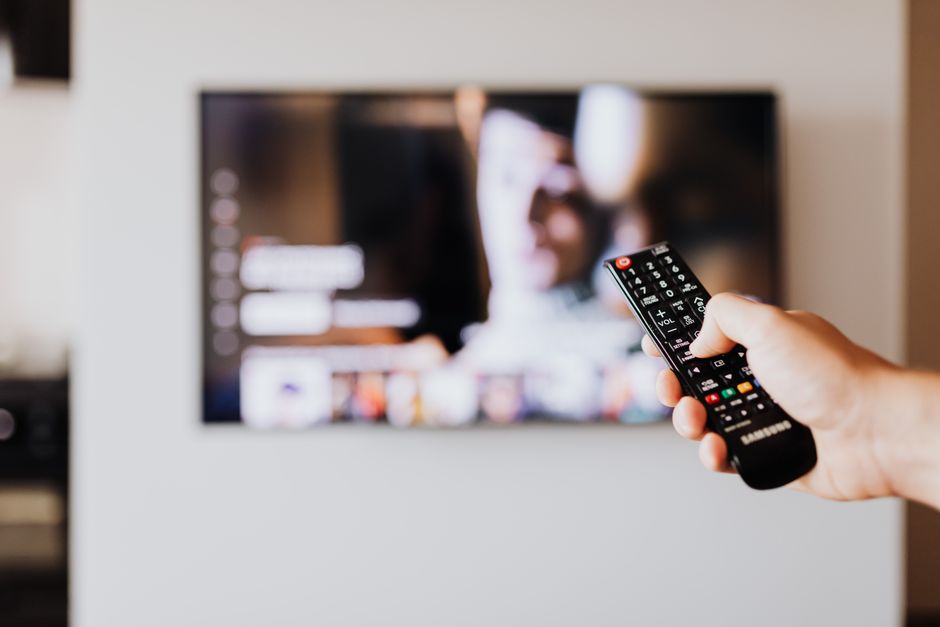
Common Mistakes to Avoid with Smart TV Privacy
Even with good intentions, it’s easy to overlook crucial aspects when trying to lock down your Smart TV’s privacy.
A common mistake is assuming that disabling one privacy setting, like ACR, turns off all data collection. This is rarely the case. Manufacturers often segment data collection into multiple categories—viewing data, app usage, voice commands, and diagnostic information. Each needs to be addressed individually. Make a point of going through every privacy-related menu.
Another pitfall is ignoring the fine print during initial setup. We’ve all been there: rapidly clicking ‘Accept’ to get to the content faster. However, those initial ‘Terms and Conditions’ and ‘Privacy Policies’ often contain the broadest grants of permission for data collection. Take a few extra minutes, or even an hour, to read through them during the first setup or later in the settings menu. You might find explicit permissions for data sharing that you wouldn’t otherwise expect.
Your Beginner Guide to Passkeys and Passwordless Login: Ditching the Digital Dilemma
Forgetting about smart home integration is also common. Many Smart TVs, especially models from Samsung, act as central hubs for smart home ecosystems. While convenient, this means your TV might be privy to data from other connected devices—your smart lights, thermostats, or even a connected USB-C webcam. Review the permissions and data sharing settings for any smart home platforms integrated with your TV, like Google Home or Amazon Alexa. Ensure your TV isn’t unnecessarily sharing data from these devices.
Finally, not understanding regional differences can lead to confusion. Regulations like the GDPR in Europe provide consumers with stronger data protection rights, meaning European models of Smart TVs often present privacy settings more clearly or have certain data collection features disabled by default compared to North American or South American counterparts. If you’re studying abroad or bought your TV in a different region, be extra diligent.
Frequently Asked Questions About Smart TV Privacy
Does disconnecting my Smart TV from the internet stop all data collection?
Disconnecting your Smart TV from the internet (Wi-Fi and Ethernet) will stop most data collection, especially the transmission of viewing habits and app usage to manufacturers and third parties. However, some internal logs might still be stored locally and could be transmitted if you reconnect it later. For full privacy, a truly ‘dumb’ TV, or a Smart TV permanently offline, is the most secure option.
Can I use a VPN with my Smart TV to enhance privacy?
Yes, you can use a VPN with your Smart TV, but it primarily helps mask your IP address and encrypt your internet traffic, preventing your ISP or other entities from seeing your online activities. While a VPN offers network-level privacy, it won’t stop your TV’s built-in software from collecting data about your viewing habits and app usage and sending it back to the manufacturer’s servers, as that data is generated before it leaves the TV.
What about guest mode or shared living spaces for Smart TVs?
Some Smart TVs offer a ‘Guest Mode,’ but it’s often more about preventing unauthorized app purchases or settings changes rather than offering solid privacy for multiple users. In shared living spaces like student dorms or apartments, it’s critical for all residents to agree on privacy settings and ideally use separate streaming accounts. The best approach is to configure the TV’s core privacy settings as restrictively as possible for everyone.
Do external streaming devices like Roku or Fire Stick improve privacy?
Using an external streaming device can improve privacy somewhat because it bypasses the Smart TV’s native operating system for content consumption. You can disable most of the Smart TV’s data collection features and use the external device for streaming. However, the external device itself will have its own privacy settings and data collection practices that you’ll need to manage, and the TV might still collect data on what external input is selected.
Are older Smart TVs less of a privacy concern?
Not necessarily. While newer Smart TVs might have more advanced data collection features, older models can often have less solid privacy controls or receive fewer security and privacy updates, making them potentially vulnerable in other ways. Always assume any internet-connected device is collecting data unless you actively configure it otherwise, regardless of its age.
Taking control of your smart TV privacy settings might seem like a chore, but it’s an important step in managing your digital life. Especially for students who are often navigating shared living spaces and multiple devices, understanding these nuances can help protect your personal information from unnecessary collection and targeted advertising. Read more useful technology guides on Le Daily Post.