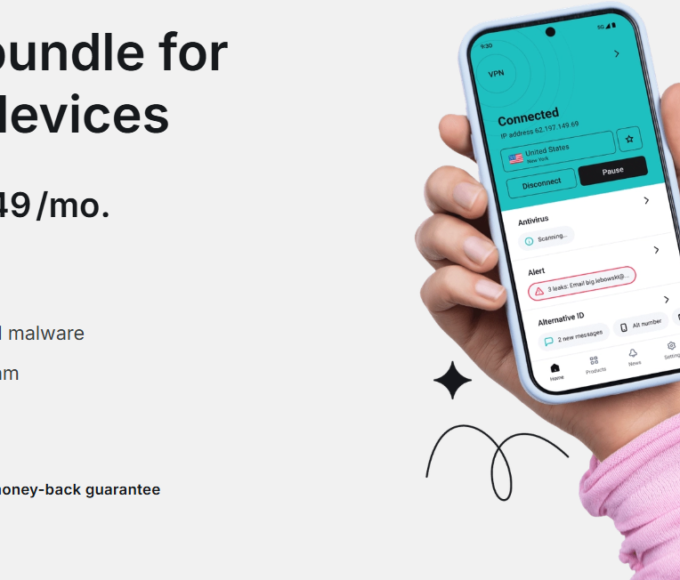
Password managers are secure digital vaults that store all your login credentials – usernames, passwords, and often other sensitive information like credit card details – in an encrypted format. They generate strong, unique passwords for new accounts and autofill them when you return to a website or app. This eliminates the need for you to remember dozens of complex passwords, preventing the common and dangerous practice of reusing passwords across multiple services. They operate with a single ‘master password’ that unlocks the vault, providing a crucial layer of security for your digital life.
We’ve all been there: staring at a login screen, racking our brains for the password we set for that obscure forum from five years ago. Or, worse, we instinctively type in ‘Password123’ or some variation of our pet’s name, adding a single number or symbol to make it ‘unique.’ The problem is, this ‘unique’ password is often just a slight tweak on the one we use for our banking, email, and social media. It feels like a small compromise for convenience, but in reality, it’s akin to using the same key for your front door, your car, and your safe deposit box. A breach on one site can quickly cascade into a compromise of your entire digital identity.
For remote workers especially, whose entire livelihood often depends on secure access to cloud services, internal platforms, and client portals, this habit isn’t just risky; it’s professionally negligent. Imagine a scenario where a small e-commerce site you once bought a gadget from gets hacked. If you used the same password there as for your corporate VPN or your project management software, suddenly, your professional life is on the line. This is where password managers step in, not as a complex piece of tech, but as a practical, everyday tool for digital hygiene.
Understanding the Problem: Why Reusing Passwords is a Recipe for Disaster
The core issue isn’t just about forgetting passwords; it’s about the domino effect of a single exposed password. Cybercriminals don’t just target major corporations; they often go after smaller, less secure websites, databases, or even public Wi-Fi networks. When they get their hands on a list of usernames and passwords, even if it’s from a seemingly insignificant site, they immediately try those same credentials on other popular services like Google, Amazon, and your bank. This is called ‘credential stuffing,’ and it’s surprisingly effective because so many people reuse passwords. Think about it: if your email password is compromised on a forum, and you use that same password for your Amazon account, a hacker now has access to your shopping history, stored payment methods, and delivery address. This isn’t theoretical; it happens every day, affecting individuals and businesses across Europe, North America, and South America.
Password Managers Explained: Your Digital Security Assistant
At their heart, password managers are encrypted digital vaults. They handle the heavy lifting of password generation, storage, and retrieval, so you don’t have to. Here’s a breakdown of how they work and what they offer:
1. Generate Strong, Unique Passwords
Forget trying to come up with ‘Tr0ub4dor&!P0ny.’ A good password manager can instantly create incredibly complex, truly random passwords for every new account you create. These passwords often look like a jumble of characters – numbers, symbols, uppercase, lowercase – making them virtually impossible for even powerful computers to guess or crack. Because each password is unique, if one account is ever compromised, all your other accounts remain secure.
2. Securely Store Your Credentials
Once generated, these passwords, along with their corresponding usernames and website URLs, are stored in your encrypted vault. This vault is typically protected by a single, very strong ‘master password’ that only you know. Some services also offer multi-factor authentication (MFA) to further secure access to your vault, often requiring a code from your phone or a physical security key.
Choosing a Tablet for Reading, Work, and Entertainment: A Practical Buying Guide
3. Autofill Logins smoothly
When you visit a website or open an app, your password manager recognizes the login fields and offers to automatically fill in your credentials. This isn’t just convenient; it prevents phishing attempts because the manager only autofills when the URL matches precisely, helping you avoid fake login pages. This works across various devices, whether you’re using a laptop in Berlin, a tablet in Buenos Aires, or a phone in Toronto.
4. Sync Across All Your Devices
Most modern password managers offer cloud synchronization, meaning your password vault is available on all your devices – your desktop computer, laptop, tablet, and smartphone. This ensures you always have access to your logins, whether you’re at home, at the office, or on the go. Services like 1Password and LastPass offer solid cross-device functionality.
5. Additional Security Features
Many password managers go beyond just passwords. They can securely store credit card information, secure notes, personal identification numbers, and even documents. Some include features like dark web monitoring, alerting you if any of your stored credentials appear in known data breaches, or a password audit tool that identifies weak or reused passwords in your existing vault.
6. Share Passwords Securely (When Necessary)
For families or work teams, some password managers allow for secure sharing of specific passwords. This is invaluable for shared services like streaming accounts or project tools, eliminating the need to send passwords via insecure methods like email or messaging apps.
Choosing the Right Password Manager for You
With several excellent options available, picking the right password manager often comes down to personal preference, specific features, and your budget. Here’s a quick comparison of some popular choices:
| Feature | LastPass | 1Password | Bitwarden | Dashlane |
|---|---|---|---|---|
| Primary Use Case | Balancing ease of use with strong features; good free tier. | Premium features, strong security, excellent family/team options. | Open-source, highly secure, excellent for tech-savvy users, generous free tier. | User-friendly, VPN included with premium plans, strong autofill. |
| Cost | Free (basic features), Premium ($36/year), Families ($48/year). | Personal ($35.88/year), Families ($59.88/year), Business plans. | Free (basic features), Premium ($10/year), Families ($40/year). | Free (limited features), Premium ($39.99/year), Family ($59.99/year). |
| Cross-Device Sync | Yes (all plans) | Yes (all plans) | Yes (all plans) | Yes (all plans) |
| MFA Support | Yes | Yes | Yes | Yes |
| Security Audit/Monitoring | Yes (Premium) | Yes | Yes | Yes (Premium) |
For most individual users, especially remote workers, any of these top-tier options will provide a significant upgrade in security. Bitwarden, being open-source, often appeals to those who prioritize transparency and community auditing of their code, while 1Password is a long-standing favorite for its polished experience and solid family plans. LastPass offers a very usable free tier, which is a great starting point for anyone new to password managers. Dashlane often stands out for its integrated VPN on paid tiers.

Common Mistakes to Avoid When Using Password Managers
While password managers offer immense security benefits, they aren’t magic bullets. A common mistake is to pick a weak master password. Your master password is the single key to your entire vault; it needs to be exceptionally strong, long, and memorable only to you. Never reuse this master password anywhere else. Another error is neglecting multi-factor authentication (MFA) for your password manager itself. Even if your master password is strong, MFA adds a crucial second layer of defense, often requiring a code from a dedicated authenticator app like Google Authenticator or a physical security key, sometimes even leveraging a USB-C port for connection.
Your Beginner Guide to Passkeys and Passwordless Login: Ditching the Digital Dilemma
Some users also get complacent and don’t regularly review their security reports within the manager. Many password managers offer insights into weak, reused, or compromised passwords. Ignoring these alerts means you’re missing out on a key feature designed to keep you safe. Similarly, relying solely on your password manager without understanding its basics is a pitfall. While they are intuitive, taking a few minutes to understand settings, backup options, and emergency access procedures can save a lot of headaches later on.
Finally, a critical point often overlooked, especially by those with Samsung devices or other Android phones, is the difference between a dedicated password manager and the built-in password saving features of browsers (like Google Chrome’s password manager) or operating systems. While convenient, browser-based password saving typically offers less solid encryption, fewer features, and is tied to a single browser or OS. Dedicated password managers are designed from the ground up for maximum security, cross-platform compatibility, and advanced features, making them a superior choice for comprehensive protection.
FAQ: Your Questions About Password Managers Explained
What is a master password, and how strong does it need to be?
Your master password is the single password that unlocks your entire password manager vault. It needs to be extremely strong – ideally a long passphrase (16+ characters) that combines random words, numbers, and symbols. It should be unique and never used for any other account, as it’s the gatekeeper to all your other credentials.
Are password managers safe if they store all my passwords in one place?
Yes, they are designed with solid encryption to make them extremely safe. Your data is encrypted locally on your device before it’s synced to the cloud, meaning even the password manager provider can’t access your raw passwords. The risk of a single breach is significantly lower than the risk of reusing weak passwords across dozens of sites.
Can I use a password manager with passkeys?
Absolutely. Many leading password managers are actively integrating passkey support or planning to do so. Passkeys offer an even more secure, password-less login experience by using cryptographic key pairs tied to your device. As passkeys become more widespread, your password manager will likely become the central hub for managing both traditional passwords and your new passkeys.
Do password managers work on all my devices, including mobile?
Most reputable password managers offer apps for all major operating systems, including Windows, macOS, Linux, Android, and iOS. This means your password vault can sync across your desktop, laptop, tablet, and smartphone, ensuring you always have access to your logins wherever you are, from Europe to North America to South America.
What happens if I forget my master password?
Forgetting your master password can be a significant problem because, for security reasons, the password manager provider usually cannot recover it for you. Some services offer emergency access options or recovery codes that should be stored securely offline. It’s crucial to choose a memorable yet strong master password and have a backup plan in place.
Embracing a password manager is one of the most impactful steps you can take to secure your digital life, especially if you’re a remote worker navigating the internet daily. It simplifies online security, reduces your risk of identity theft, and frees you from the burden of remembering complex logins. To learn more useful technology guides and enhance your digital security, read more on Le Daily Post.