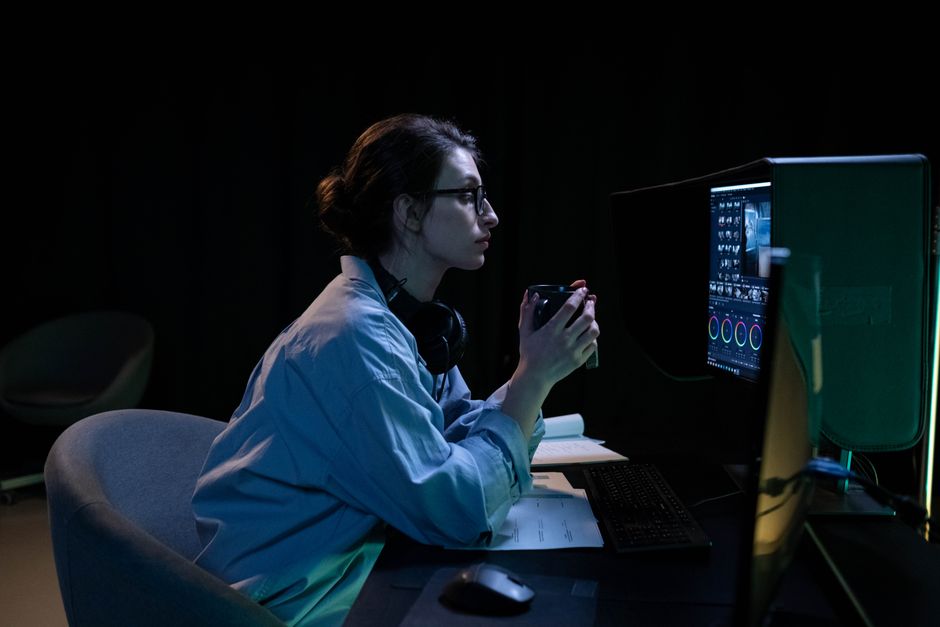
To choose a monitor for work and gaming, prioritize a 1440p (QHD) resolution for a good balance of screen real estate and sharp visuals. Look for a refresh rate of at least 120Hz-144Hz for smooth gaming, and a response time of 1ms-5ms. IPS panels generally offer the best color accuracy and viewing angles for both tasks. Consider screen size based on your desk space and viewing distance, typically 27-32 inches. Finally, ensure it has appropriate connectivity for your PC and consoles like Xbox or Steam Deck.
You’ve decided it’s time for a new monitor, but suddenly you’re drowning in a sea of acronyms: IPS, VA, OLED, QHD, UHD, HDR, Freesync, G-Sync. It’s enough to make anyone throw their hands up and just pick the cheapest one. But when you spend hours every day in front of a screen, whether you’re crunching spreadsheets, editing video, or diving into a demanding game like Fortnite, that monitor isn’t just a display; it’s your window into your digital world. A poor choice can lead to eye strain, frustration, and a less immersive experience.
The challenge isn’t just about finding a monitor that looks good, but one that performs optimally for the dual demands of productivity and high-performance gaming. Many people make the mistake of over-prioritizing one aspect, like refresh rate, without considering how it impacts the other, such as text clarity or color accuracy. This guide aims to demystify the specs, give you real-world examples, and help you navigate the market to choose a monitor for work and gaming without getting lost in options, ensuring you get the best of both worlds.
So, let’s cut through the marketing noise and focus on what truly matters for a monitor that can handle your workday presentations and your late-night raids, whether you’re in Berlin, Buenos Aires, or Boston.
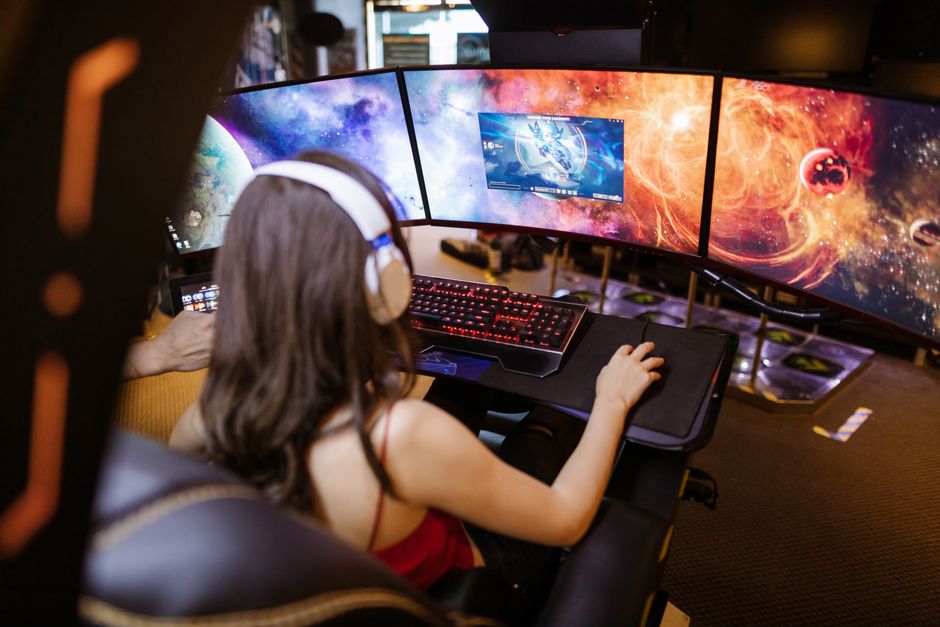
Quick Monitor Checklist for Work and Gaming
Before diving deep, here’s a quick overview of what you should be looking for when trying to choose a monitor for work and gaming:
- Resolution: 1440p (QHD) is the sweet spot for balance; 4K (UHD) for larger screens and productivity.
- Refresh Rate: 120Hz-144Hz for most gamers; 240Hz+ for competitive esports.
- Response Time: 1ms (GtG) is ideal for gaming, 5ms is acceptable for casual play.
- Panel Type: IPS for color accuracy and viewing angles, VA for contrast, OLED for ultimate quality.
- Adaptive Sync: FreeSync (AMD) or G-Sync (NVIDIA) to prevent screen tearing.
- Ergonomics: Height, tilt, swivel, and pivot adjustments are crucial for long work sessions.
- Connectivity: HDMI 2.0/2.1, DisplayPort 1.4, USB-C (with power delivery) for versatility.
The Resolution vs. Refresh Rate Tightrope Walk
This is where most people get tangled. Do you want super-sharp images or super-smooth motion? For a monitor that needs to pull double duty, it’s about finding the right balance.
Understanding Resolution: Pixels Make the Picture
Resolution refers to the number of pixels displayed on the screen, typically expressed as width x height (e.g., 1920×1080). More pixels mean a sharper image and more screen real estate for your applications.
- 1080p (Full HD): Common for budget screens. Fine for casual gaming and basic work, but text can appear less sharp, and screen space is limited, especially on larger monitors.
- 1440p (QHD or 2K): This is often the recommended sweet spot for a monitor for work and gaming. It offers a significant jump in sharpness and screen space over 1080p, making multitasking much more comfortable. For gaming, it’s still relatively easy for mid-range to high-end graphics cards (like an NVIDIA GeForce RTX 3070 or AMD Radeon RX 6700 XT) to drive high frame rates.
- 4K (UHD): Four times the pixels of 1080p. Ideal for detailed work like video editing, graphic design, or coding, providing immense screen real estate. For gaming, 4K is incredibly immersive, but it demands a powerful, often expensive, GPU (think RTX 4080 or RX 7900 XT) to maintain high frame rates. If you’re hooking up an Xbox Series X or PlayStation 5, a 4K 120Hz display is the dream, but ensure your PC can also handle it.
Practical Tip: For most setups, a 27-inch 1440p monitor provides an excellent balance. If you go larger, say 32 inches, 1440p can start to look a bit less crisp, and 4K becomes more appealing, provided your hardware can keep up.
Unpacking Refresh Rate: Smooth Motion Matters
Refresh rate, measured in Hertz (Hz), indicates how many times per second the display updates its image. A higher refresh rate means smoother motion, which is critical for gaming, reducing motion blur and making fast-paced action feel more responsive.
- 60Hz: Standard for most office monitors. Adequate for general work, media consumption, and casual, slower-paced games.
- 120Hz-144Hz: The ideal target for a monitor for work and gaming. It provides a noticeably smoother experience than 60Hz, both on the desktop (moving windows, scrolling) and in games. Most modern GPUs can hit these frame rates in many titles at 1440p. For console gamers on Xbox Series X or PlayStation 5, 120Hz support is key for specific titles.
- 240Hz+: Primarily for competitive esports players where every millisecond counts. Games like Counter-Strike 2 or Valorant truly benefit. While incredibly smooth, the jump from 144Hz isn’t as dramatic as from 60Hz to 144Hz for most users, and it requires a very powerful GPU to consistently hit these frame rates, especially at 1440p or 4K.
Trade-off: You might find a 4K 60Hz monitor cheaper than a 1440p 144Hz monitor. If your priority is work and visual fidelity over high frame-rate gaming, 4K 60Hz might be acceptable. But for anything involving fast-paced movement, you’ll feel the difference a higher refresh rate makes. Many gamers on platforms like Steam prioritize refresh rate for a competitive edge.
The Best Multiplayer Games for Long-Distance Friends and Families
Panel Types: Colors, Contrast, and Viewing Angles
The underlying technology of your monitor’s display panel significantly impacts image quality, viewing angles, and response time.
IPS Panels: The All-Rounder
In-Plane Switching (IPS) panels are a popular choice for their excellent color accuracy and wide viewing angles. This makes them superb for creative work, general productivity, and immersive gaming where visual quality is paramount. IPS panels have traditionally had slower response times compared to TN, but modern IPS gaming monitors (like LG UltraGear or Dell Alienware models) now offer 1ms GtG (Grey-to-Grey) response times, making them fantastic for both.
VA Panels: Contrast King
Vertical Alignment (VA) panels excel in contrast ratio, meaning deeper blacks and brighter whites, which is fantastic for consuming media and playing atmospheric, dark games. They also offer decent color reproduction, though usually not quite on par with IPS. Viewing angles are better than TN but not as wide as IPS. VA panels can sometimes suffer from ‘black smearing’ in fast-moving dark scenes, a ghosting effect that can be noticeable in some games.
OLED Panels: The Premium Choice
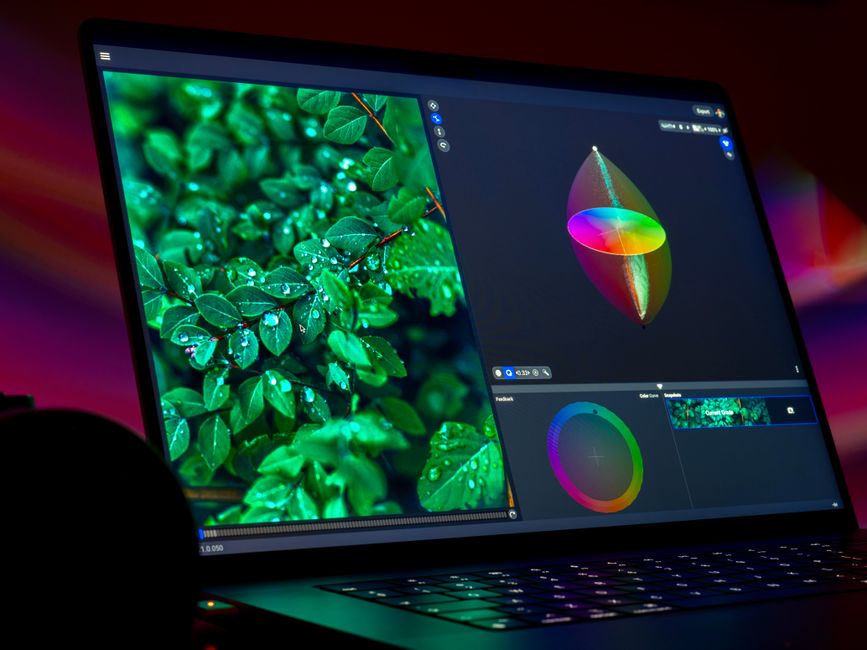
Organic Light-Emitting Diode (OLED) technology offers individual pixel control, meaning perfect blacks and infinite contrast. Colors are vibrant, and response times are virtually instantaneous. OLED monitors provide an unparalleled visual experience for both work (especially content creation) and gaming. The main downsides are often a higher price tag and a potential (though mitigated in modern displays) risk of burn-in with static elements, which can be a concern for productivity users with fixed UI elements on screen for long periods. Brands like Samsung and Alienware are leading with QD-OLED options.
Response Time and Adaptive Sync: Gaming Essentials
These features are primarily for gaming, but a good response time also means smoother cursor movement and less blur when scrolling rapidly during work.
Response Time: Quicker Pixels
Response time measures how quickly a pixel can change from one color to another. A lower number is better, typically 1ms (GtG) for serious gamers. Higher response times can lead to motion blur or ‘ghosting’, where trails appear behind fast-moving objects. While 1ms is ideal for competitive gaming, 4-5ms is perfectly acceptable for most casual gamers and daily work.
Adaptive Sync: Goodbye Screen Tearing
Screen tearing occurs when your graphics card sends new frames faster or slower than your monitor’s refresh rate, resulting in a horizontally split image. Adaptive Sync technologies synchronize your monitor’s refresh rate with your GPU’s frame rate, eliminating tearing and reducing stuttering.
- NVIDIA G-Sync: NVIDIA’s proprietary technology, requiring a special module in the monitor. Generally excellent performance but often adds to the monitor’s cost.
- AMD FreeSync: An open standard, widely adopted across many monitors, often without a significant price premium. Newer NVIDIA GPUs can also use FreeSync monitors (referred to as ‘G-Sync Compatible’).
Recommendation: Always aim for a monitor with FreeSync or G-Sync (or G-Sync Compatible) if you’re serious about gaming. It makes a tangible difference in visual fluidity.
Ergonomics and Connectivity: The Practical Side
Don’t overlook these practical aspects; they significantly impact your daily comfort and workflow.
PC vs Console vs Handheld: Which Gaming Setup Fits Your Lifestyle?
Ergonomics: Your Body Will Thank You
For a monitor you’ll use for work, adjustability is non-negotiable. Look for: height adjustment, tilt (up/down), swivel (left/right), and pivot (portrait/landscape rotation). These allow you to set up your screen at an optimal eye level, reducing neck and eye strain during long working hours. Many premium monitors from brands like BenQ, ASUS, or HP offer excellent stands. If a monitor lacks these, consider a VESA-compatible stand or monitor arm.
Connectivity: Plugging Everything In
Ensure your chosen monitor has the ports you need for your PC, laptop, and consoles.
- DisplayPort (DP): The preferred connection for PC gaming, supporting high refresh rates and resolutions. Aim for DP 1.4 or newer.
- HDMI: Universal for PCs and consoles (Xbox, PlayStation, Nintendo Switch). HDMI 2.0 supports 1440p 144Hz or 4K 60Hz; HDMI 2.1 is needed for 4K 120Hz.
- USB-C: Increasingly common, especially on laptops. A single USB-C cable can carry video, data, and power (charging your laptop). In Europe, many modern ultrabooks rely on USB-C for display output.
- USB Hub: Useful for connecting peripherals like your mouse, keyboard, or webcam directly to the monitor, reducing cable clutter.
FAQ: Answering Your Monitor Questions
What is the best resolution for a 27-inch monitor for work and gaming?
For a 27-inch monitor, 1440p (QHD) is generally considered the best resolution. It offers a significant upgrade in sharpness and screen real estate over 1080p, making text clearer and providing more room for multiple applications during work. For gaming, 1440p still allows modern GPUs to achieve high frame rates, providing a great balance of visual quality and performance without needing top-tier, expensive hardware.
Is 144Hz enough for gaming, or do I need 240Hz?
For most gamers, 144Hz is more than enough and offers a dramatic improvement over 60Hz. It provides very smooth gameplay and a responsive feel. 240Hz monitors are primarily beneficial for highly competitive esports players who demand every possible advantage in fast-paced titles like CS:GO or Valorant. For single-player immersive games or general multiplayer, 144Hz offers an excellent experience without the higher cost and GPU demands of 240Hz.
Can I use a gaming monitor for professional graphic design work?
Yes, many modern gaming monitors, especially those with IPS or OLED panels, are perfectly suitable for professional graphic design work. Look for models with excellent color accuracy (e.g., 99% sRGB or DCI-P3 coverage) and factory calibration reports. While some dedicated professional monitors offer wider color gamuts, a high-quality IPS gaming monitor will often provide a great balance of color fidelity for design and the high refresh rates needed for gaming.
What’s the difference between FreeSync and G-Sync for my gaming PC?
FreeSync (AMD) and G-Sync (NVIDIA) are both adaptive sync technologies designed to eliminate screen tearing and stuttering by synchronizing the monitor’s refresh rate with the GPU’s frame rate. G-Sync requires a proprietary NVIDIA module in the monitor, often making G-Sync monitors more expensive. FreeSync is an open standard, more widely available and often more affordable. Most modern NVIDIA GPUs are also compatible with FreeSync monitors (G-Sync Compatible).
Should I choose a curved monitor for work and gaming?
Curved monitors can offer a more immersive experience for gaming and can feel more natural for productivity, especially with ultra-wide displays. The curve helps to keep all parts of the screen equidistant from your eyes, reducing distortion at the edges. For typical 16:9 aspect ratio monitors, the benefit of a curve is less pronounced than on an ultra-wide. It’s largely a matter of personal preference; some find them more comfortable, while others prefer flat screens.
Key Takeaways for Your Monitor Search
Navigating the monitor market can be daunting, but by focusing on a few key areas, you can confidently choose a monitor for work and gaming that meets your needs. Remember, the goal is a balanced display that enhances both your productivity and your leisure time, whether you’re tackling projects or exploring new worlds on Steam.
Prioritize a 1440p resolution for crisp visuals and ample workspace, coupled with a 120Hz-144Hz refresh rate for smooth gaming across most titles, including popular ones like Fortnite. Opt for an IPS panel for excellent color accuracy and viewing angles, or consider OLED if your budget allows for the ultimate visual fidelity. Don’t forget adaptive sync (FreeSync or G-Sync) to eliminate screen tearing, which is crucial for a fluid gaming experience across North America, South America, and Europe. Finally, ensure your monitor has good ergonomics and the right connectivity for your devices, including USB-C if you use a modern laptop.
By keeping these points in mind, you’ll be well-equipped to select a display that serves as a powerful tool for your professional tasks and an immersive portal for your gaming adventures, without feeling overwhelmed by the endless options. Get ready for clearer spreadsheets and more victories!
Discover more gaming guides and hardware reviews to enhance your setup on Le Daily Post.